Search the documentation
Enter at least 2 characters
Enter at least 2 characters
 |
CAE Fidesys 9.0 Documentation |
In CAE Fidesys it is possible to set multistep loading via a tabular time dependence or through explicit assignment of steps.
The table dependency is set in the section Task dependencies on time or coordinates, while it is necessary to set time-dependent flag. Setting the load as
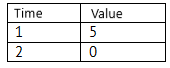
means a linear decrease of the value from 5 to 0.
Step-by-step example of setting the loading history using tables
Explicit assignment of steps for boundary conditions occurs in the Loading Steps Settings window (Mode - Calculation Settings, Calculation Settings - Static, Static - General).
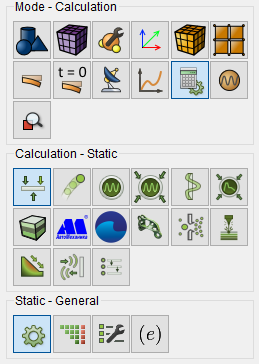
Set the number of static loading steps.

To open the loading steps settings window, click on the icon 
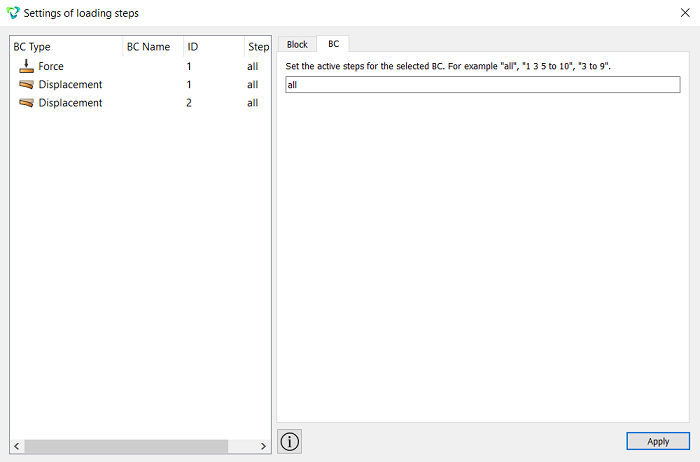
Next, specify the required settings:
Select the bondary conditions tab.
Click in the left column on the boundary condition for which it is necessary to set the active calculation steps.
Set the active calculation steps for the selected boundary condition in the corresponding field.
Setting active steps is possible in the following format: "all", "1 2 3 to 5", "1 to 5".
Click Apply.
CAE Fidesys allows you to add or remove blocks (volumes\surfaces, added to the block) at the specified loading steps.
The addition or exclusion of blocks in the calculation process occurs in the window Adjustment of loading steps (Mode - Calculation settings - Static - General - Set static load steps count), similar to described above. At the same time, all operations occur based on blocks, so for all geometric entities there should be a block (or several blocks, depending on the model) was created in advance.
Go to the Loading Steps Settings window.
To do this, enter the required number in the general settings panel
of the solver calculation steps and click on the icon .
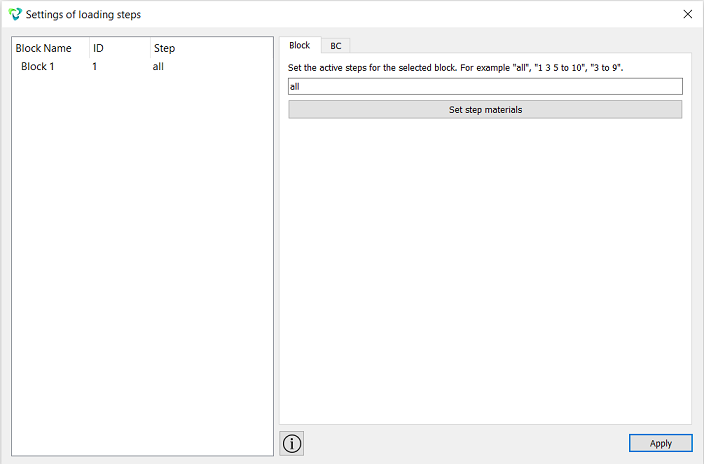
Next, specify the required settings:
Select the Blocks tab.
Click on the block in the left column.
Set the active calculation steps for the selected block in the corresponding field.
Setting active steps is possible in the following format: "all", "1 2 3 to 5", "1 to 5".
Click Apply.
Step-by-step example of setting the loading history using tables
Step- by-step example of adding volume in the calculation process