Search the documentation
Enter at least 2 characters
Enter at least 2 characters
 |
CAE Fidesys 9.0 Documentation |
This option is applicable if the multistep calculation does not count down to the last step, but has stopped at some step of the calculation. In this case, you can not start in such a case, you will not have to re-start the calculation, but can continue it from the last successful step, by importing the vtu-file into the preprocessor, and using the command:
static inittime <last_successful_load_time> initstep <last_successful_step>
The step-by-step example shows the algorithm for starting the calculation in a new window CAE Fidesys from a certain step. In this case, the calculation reaches the third calculation step step and then stops and the CAE Fidesys program closes. To continue calculation from the fourth calculation step, the CAE Fidesys software is reopened and the the last successful vtu calculation file is imported. Then, the calculation is started with the command from the fourth step. The results are saved in the same folder as the previous ones.
The vtu import does not support spectral elements. Therefore, for correct calculation, problems are only counted with first- and second-order elements.
Run the script with step-by-step formation of workings:
reset
set node constraint on
#{num = 4}
brick x {num+1} y 10 z 10
create Cylinder height {num} radius 1
rotate Volume 2 angle 90 about Y
move vol 2 x 0.5
subtract volume 2 from volume 1
compress all
#{i = 1}
#{Loop(num)}
create Cylinder height 1 radius 1
rotate Volume {i+1} angle 90 about Y
move vol {i+1} x {i-num/2}
#{i++}
#{EndLoop}
imprint all
merge all
mesh vol all
block 1 vol 1
#{i = 1}
#{Loop(num)}
block {i+1} vol {num+2-i}
#{i++}
#{EndLoop}
create material 1
modify material 1 set property 'MODULUS' value 2e+8
modify material 1 set property 'POISSON' value 0.3
modify material 1 set property 'DENSITY' value 1900
modify material 1 set property 'COHESION' value 29000
modify material 1 set property 'INT_FRICTION_ANGLE' value 20
modify material 1 set property 'DILATANCY_ANGLE' value 10
block all element solid order 2
block all material 1
create displacement on surface 2dof 3 fix 0
create displacement on surface 3 5dof 2 fix 0
create displacement on surface 4 8 dof 1 fix 0
create gravity global
modify gravity 1 dof 3 value -9.81
analysis type static elasticity dim3
static steps {num+1}
#{i = 1}
#{Loop(num)}
block {i+1} step 1 to {i}
#{i++}
#{EndLoop}
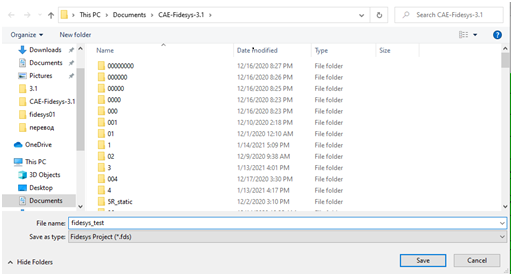
Save the file fidesys_test.fds:
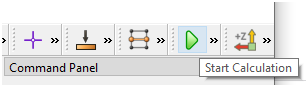
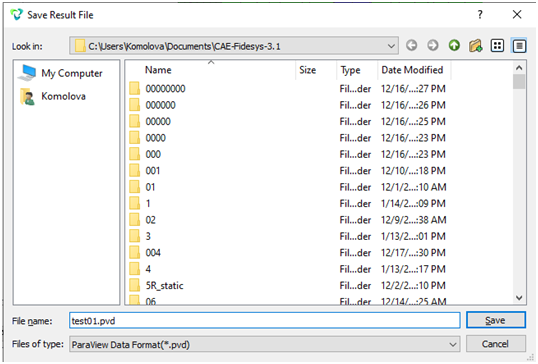
Run the calculation, save the result in the file test01.pvd:
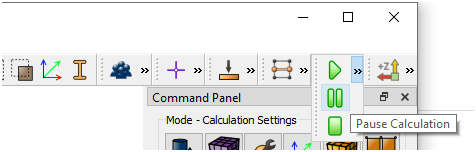
Simulate the situation when the calculation stopped at the third step. In this case, click on Pause after the third calculation step is complete:
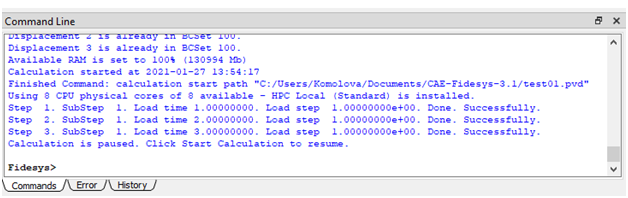
On the command line:
Close the CAE Fidesys program window.
Open a new instance of the interface.
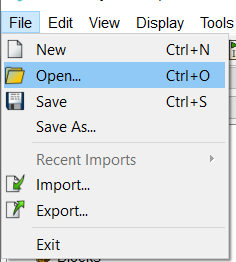
Open the model (fds file) that you ran for calculation or re-create it with the script, if the fds is not saved:
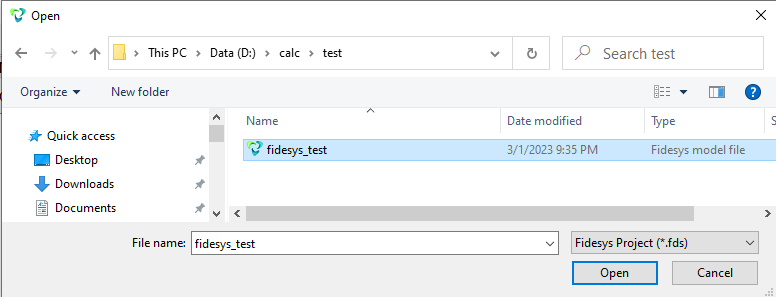
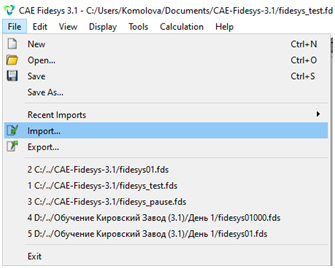
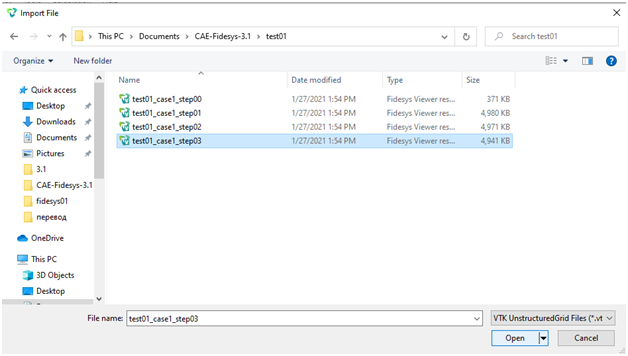
Import the last successfully calculated vtu file:
Up next:
Up next:
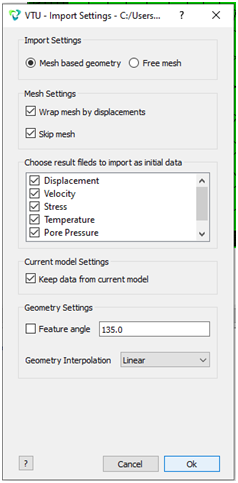
Or import test01.pvd in the same way.
In general, the command should look like this:
import vtu 'path_to_last_successful_result.vtu' result_as_initialkeep_dataskip_mesh
Or for a pvd-file:
import pvd 'path_to_result.pvd' result_as_initialkeep_dataskip_mesh
Specify in the command from which step and moment of time to do the calculation (the functionality is still only available in the command).
General view of the command:
static inittime <last_successful_load_time> initstep <last_successful_step>
last_successful_load_time - moment of time for which the loaded vtu was recorded.
last_successful_step - the last successful step, which in the console is called StepN.
In order to find out the correct data, you need to open the log file userlog.txt. It is located in the folder with vtu files. In this case:
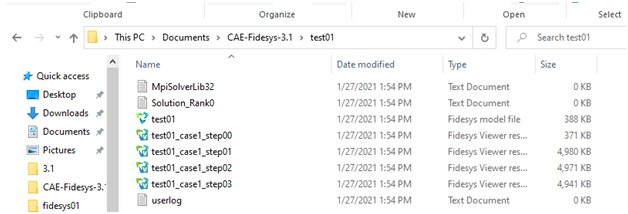
File Contents:
Calculation started at 2021-01-27 13:54:17
Using 8 CPU physical cores of 8 available - HPC Local (Standard) is installed.
Step  1. SubStep  1. Load time 1.00000000. Load step  1.00000000e+00. Done. Successfully.
Step  2. SubStep  1. Load time 2.00000000. Load step  1.00000000e+00. Done. Successfully.
Step  3. SubStep  1. Load time 3.00000000. Load step  1.00000000e+00. Done. Successfully.
Calculation is paused. Click Start Calculation to resume.
In this case:
last_successful_load_time=3
last_successful_step=3
The command will look as follows:
static inittime 3 initstep 3
Run the calculation.
Run the calculation again using the shortcut button on the Toolbar. From version 4.0 the results will be appended to the existing pvd-file.
The command line should tell you that steps 4 and 5 have been done for the calculation:

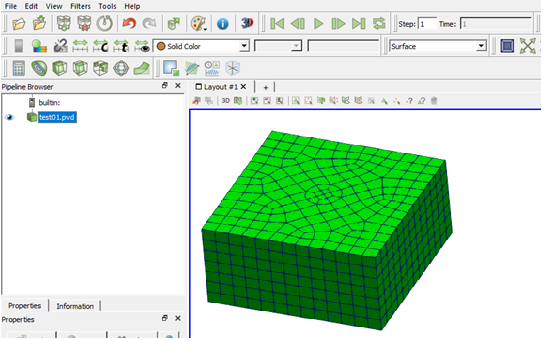
Step 1 (test01.pvd)
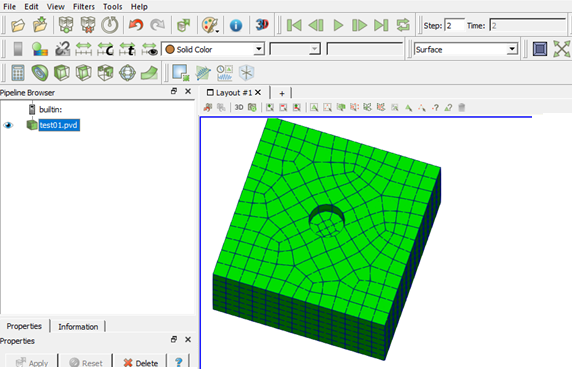
Step 2 (test01.pvd)
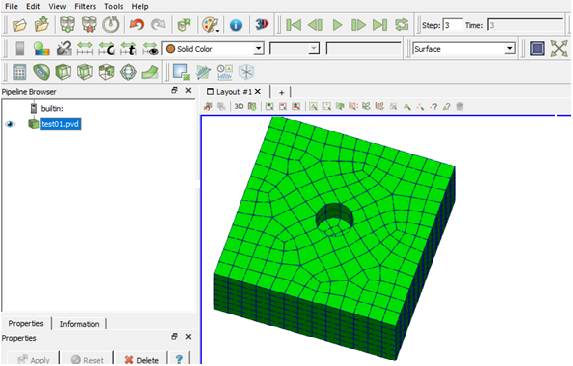
Step 3 (test01.pvd)
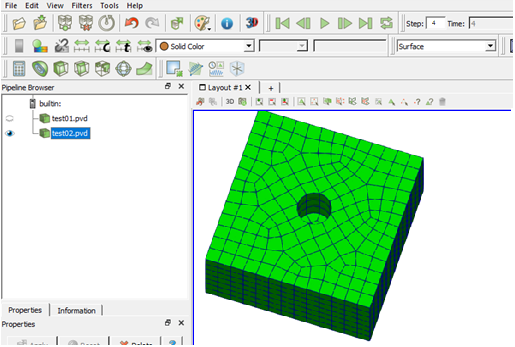
Step 4 (test02.pvd time=4)
Step 5 (test02.pvd time=5)