Search the documentation
Enter at least 2 characters
Enter at least 2 characters
 |
CAE Fidesys 9.0 Documentation |
Let's start by opening a new Fidesys session. To perform the tutorial you need to load the ACIS file that contains the geometric model data.
Find the knuckle.sat file in the ...\This Computer\Documents folder.
From the File menu of Fidesys, select the Import... option, as shown below:
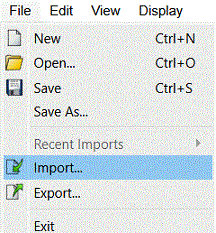
Fig. 2 - File-Import.
The Import File dialog box will appear. Find the file in the folder specified above, click on its name and click Open:
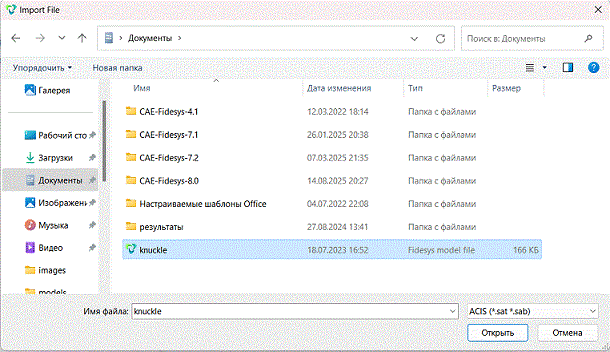
Fig. 3 - File selection window for import.
On the dialog box that appears, leave all the default settings and click Finish:
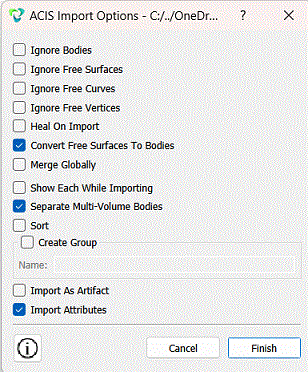
Fig. 4 - Import dialog box.
The imported entity will be displayed in the graphic window:
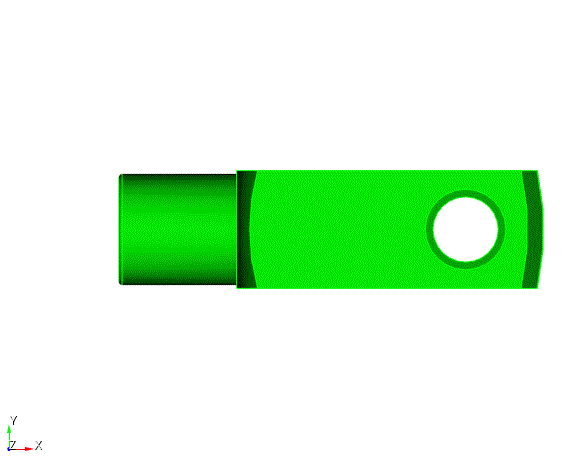
Fig. 5 - Imported entity.
Using the mouse, you can rotate this entity to see the features of its geometry (see Mouse Based View Navigation: Zoom, Pan and Rotate):
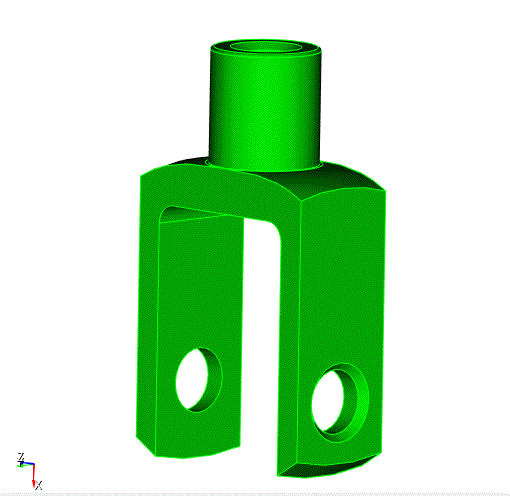
Fig. 6 - Geometric model in isometry.

