Search the documentation
Enter at least 2 characters
Enter at least 2 characters
 |
CAE Fidesys 9.0 Documentation |
To control the type, quality and speed of visualization in Fidesys, you can select one of the icons on the Toolbar that are responsible for the image mode (see Fig. 17). The following image modes can be used: wire frame, dashed hidden line image, remove hidden line, transparent image, and soft shadow image:
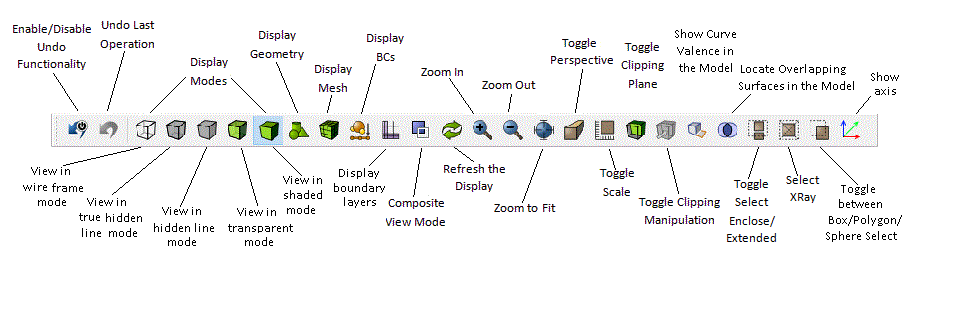
Fig. 17 - Toolbar icons responsible for image modes
Fig. 18 and Fig. 19 illustrate the modes with the removal of invisible lines and wireframe, respectively.
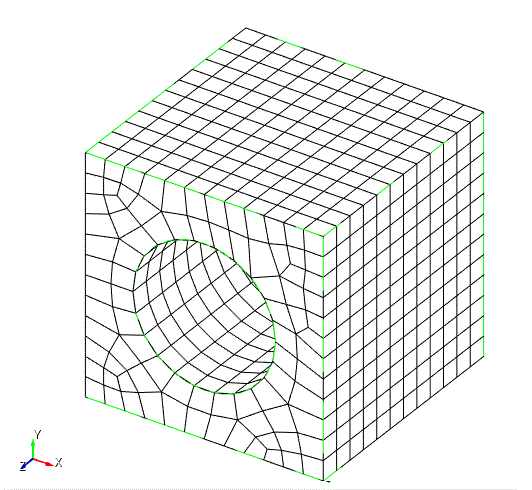
Fig.18 - Image of a mesh in the form of a wire frame
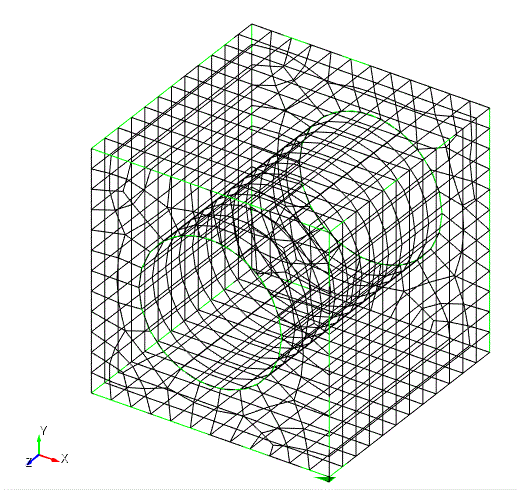
Fig. 19 - Wireframe mesh image
After generating the mesh, Fidesys automatically calculates a number of metrics characterizing its quality and warns the user about certain cases of poor quality. A wider range of quality criteria can also be checked. To do this, enter the following command in the command line window:
FIDESYS> quality volume 1 allmetrics
The results of the check also appear in the command line window. For explanations of the quality metrics and acceptable ranges for their variation, see the section Evaluating the quality of the mesh. For the purposes of this instruction, it is sufficient to ensure that the quality metrics presented are within the acceptable range.

