Search the documentation
Enter at least 2 characters
Enter at least 2 characters
 |
CAE Fidesys 9.0 Documentation |
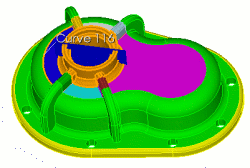
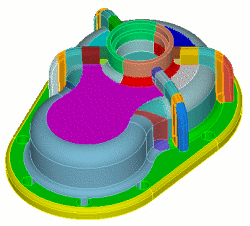
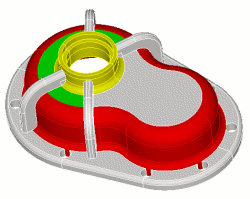
Virtual geometry operations allow you to change the parameters of a mesh without changing the original geometry. In this example, virtual geometry is used to remove unwanted small curves and create a volume suitable for sweeping. The function of creating compound curves is used, which combines small curves obtained by cutting a surface of small curvature. Then, to provide a sweep, the command of creating additional sections on the surface is used.
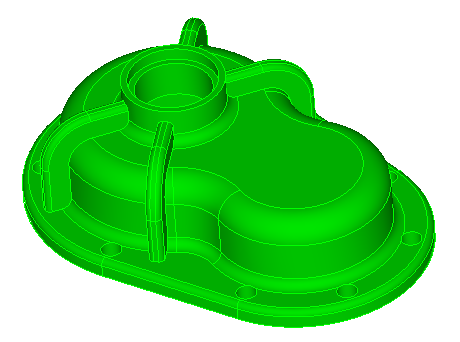
Fig. 1 - Geometric model
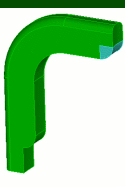
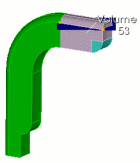
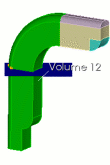
Table 1. - Commands for preparing geometry for mesh construction according to the sweeping scheme.
Section view |
Commands |
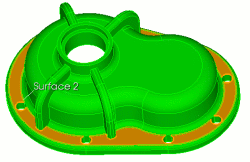 |
FIDESYS> webcut volume 1 sweep surface 2 vector 0 0 -1 through_all |
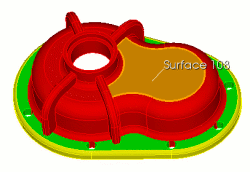 |
FIDESYS> webcut volume 3 sweep surface 108 vector 0 0 -1 through_all |
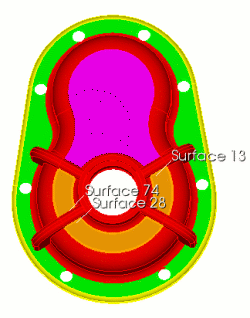 |
FIDESYS> webcut volume 3 sweep surface 13 vector 0 0 -1 through_all FIDESYS> webcut volume 3 sweep surface 28 vector 0 0 -1 through_all FIDESYS> webcut volume 3 sweep surface 74 vector 0 0 -1 through_all |
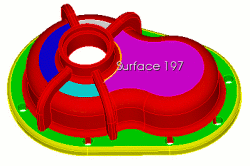 |
FIDESYS> webcut volume 3 with sheet extended from surface 197 |
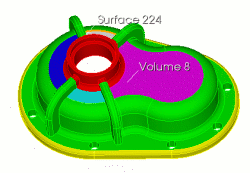 |
FIDESYS> webcut volume 8 with sheet extended from surface 224 |
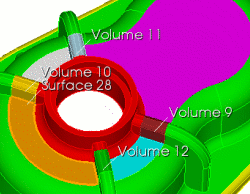 |
FIDESYS> webcut volume 11 10 12 9 with plane surface 28 |
|
FIDESYS> webcut volume 3 with plane normal to curve 116 fraction 0.5 |
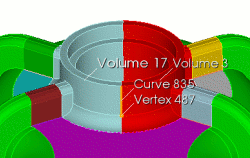 |
FIDESYS> webcut volume 3 17 with plane normal to curve 835 close_to vertex 487 |
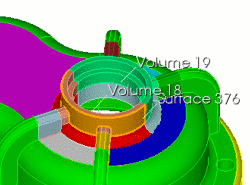 |
FIDESYS> webcut volume 18 19 with sheet extended from surface 376 |
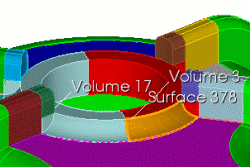 |
FIDESYS> webcut volume 3 17 with sheet extended from surface 378 |
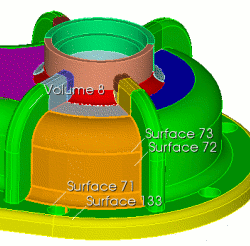 |
FIDESYS> webcut volume 8 with sheet extended from surface 73 FIDESYS> webcut volume 8 with sheet extended from surface 72 FIDESYS> webcut volume 8 with sheet extended from surface 133 FIDESYS> webcut volume 8 with sheet extended from surface 71 |
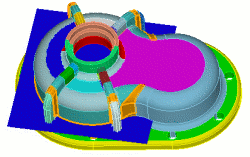 |
FIDESYS> webcut volume 8 with plane vertex 709 vertex 713 vertex 702 |
 |
FIDESYS> unite volume 36 45 FIDESYS> unite volume 37 43 FIDESYS> unite volume 35 44 FIDESYS> unite volume 39 42 |
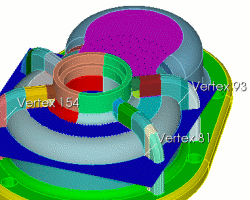 |
FIDESYS> webcut volume 29 with plane vertex 81 vertex 93 vertex 154 |
FIDESYS> unite volume 33 36 50 11 FIDESYS> unite volume 10 49 37 31 FIDESYS> unite volume 12 52 35 34 FIDESYS> unite volume 9 51 39 32 FIDESYS> unite volume 9 22 FIDESYS> unite volume 12 23 FIDESYS> unite volume 20 33 FIDESYS> unite volume 21 10 |
|
|
FIDESYS>
webcut volume 12 with plane vertex 86 vertex 71 vertex 76 FIDESYS> webcut
volume 9 with plane vertex 99 vertex 101 vertex 103 FIDESYS> webcut
volume 20 with plane vertex 140 vertex 138 vertex 135 FIDESYS> webcut
volume 21 with plane vertex 165 vertex 163 vertex 160 These commands make cuts on the 4 stiffeners, as shown in the figures. They are made for each rib. In doing so, small curves are created that will be removed later. |
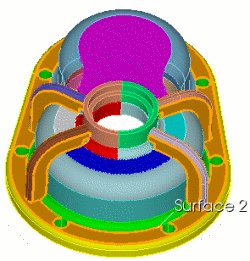 |
FIDESYS> webcut volume 70 65 59 54 with plane surface 2 |
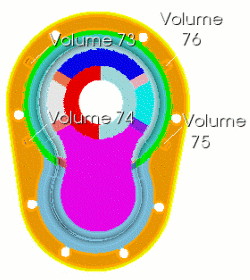 |
FIDESYS> unite volume 1 76 75 73 74 |
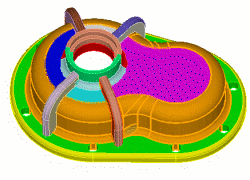 |
FIDESYS> unite volume 28 47 46 41 48 38 8 30 29 40 |
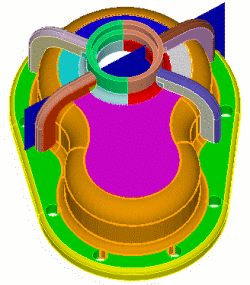 |
FIDESYS> webcut volume 28 with plane surface 870 FIDESYS> webcut volume 28 77 with plane surface 871 FIDESYS> webcut volume 28 77 with plane surface 878 FIDESYS> webcut volume 28 77 with plane surface 879 |
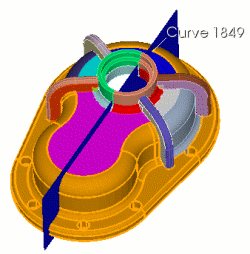 |
FIDESYS> webcut volume 1 81 2 82 with plane normal to curve 1849 fraction 0.5 |
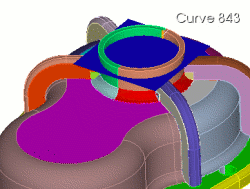 |
FIDESYS>webcut volume 19 18 with plane normal to curve 843 fraction 0.75 |
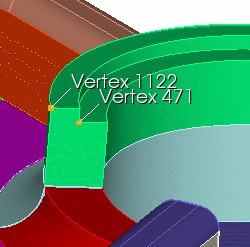 |
FIDESYS> create curve vertex 1122 vertex 471 on surface 1134 |
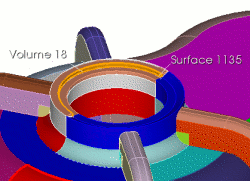 |
FIDESYS> webcut volume 19 sweep curve 2073 along curve 2042 through_all FIDESYS> webcut volume 18 with sheet extended from surface 1146 FIDESYS> webcut volume 18 with sheet extended from surface 1135 |
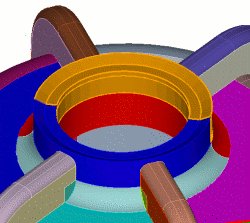 |
FIDESYS> unite volume 91 92 FIDESYS> delete curve 2073 |
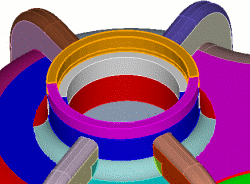 |
FIDESYS> unite volume 89 18 FIDESYS> unite volume 88 19 FIDESYS> imprint all FIDESYS> merge all |
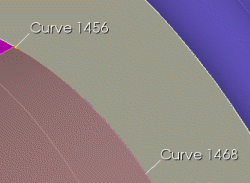 |
Combining small curves obtained by performing cuts into composite curves: FIDESYS> composite
create curve 1456 1468 |
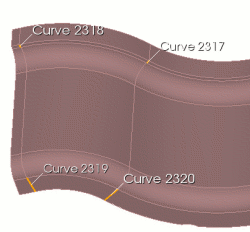 |
Creating sections of curves and surfaces using existing vertices: FIDESYS> partition
create surface 1067 vertex 311 175 |
 |
In this case, the order of partitioning into elements is important. Since a constant number of intervals is set for the partitioned volume, you should check their equality on adjacent volumes. Usually the mesh generation algorithm performs such a check, but sometimes it is useful to split the volumes in a certain order. The order of splitting can have a significant impact on the quality of the generated mesh. FIDESYS> reset
volume all |
The constructed mesh looks like this, Fig. 2:
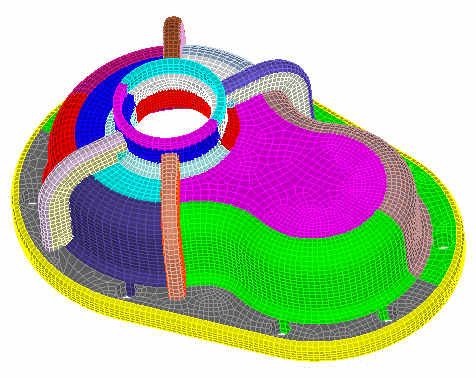
Fig. 2 - Resulting mesh.