Search the documentation
Enter at least 2 characters
Enter at least 2 characters
 |
CAE Fidesys 9.0 Documentation |
The following issues are discussed below:
Creating a section;
Exporting a section;
Importing a section.
To create a section, you need to make a block with the category "Plane".
It is important that the section is constructed in the XY plane and has the direction of the surface normal Z+.
In order to program something in CAE Fidesys, you need to make changes (Mode – Block, Entity - Import/Export section).
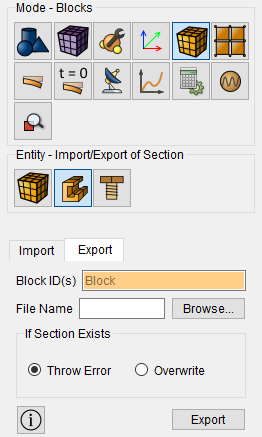
In the panel below, select Export. Specify the block ID (or click on the corresponding part of the geometric model). Then click on the Browse button. Specify the path and file name to save the section you made.
Then select Throw Error or Overwrite for the previously created section.
IMPORTANT: if you export a section with an existing name and select Throw Error, the new section you created will not be saved. If you export a section with an existing name and select Overwrite, then CAE Fidesys will overwrite the old section with the same name to the new section you created. Click Export.
The corresponding command, entered in the command prompt window, looks like:
export section 'file_name' {from} <block_ID>
In order to import a custom section into CAE Fidesys, it is necessary to switch to (Mode – Block, Entity – Import/Export section) in the preprocessor.
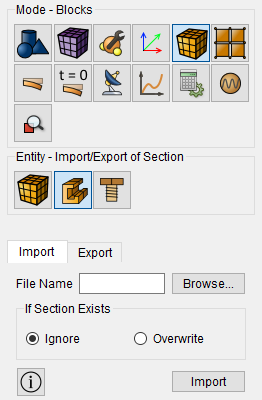
In the panel below, select – Import. Then click on the Browse button. Specify the path and file name to import the section.
Select Ignore or Overwrite for the imported section.
IMPORTANT: if you previously imported a section with an existing name and select Ignore, the previously imported section will be used. If you previously imported a section with an existing name and select Overwrite, then CAE Fidesys will overwrite the old section with the same name to the new section you are importing. Click Import.
The corresponding command, entered in the command prompt window, looks like:
import section 'file_name'
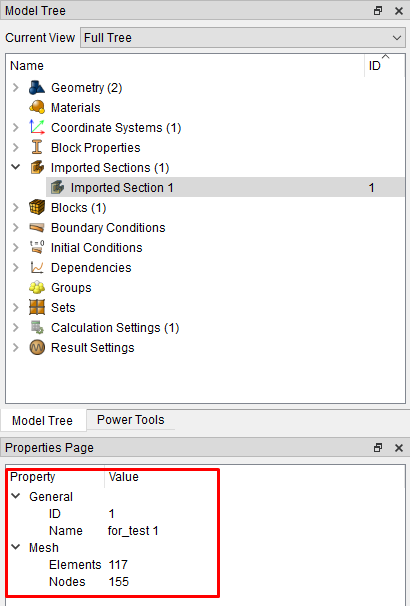
In the project tree, the corresponding Imported Sections with the corresponding ID appears in the "Imported Sections" field. The section properties display its ID, file name, and the number of nodes and elements.
In order to embed the software in a block (application or network), switch to (Mode – Blocks, Entity – Block, Action – Block properties/parameters).
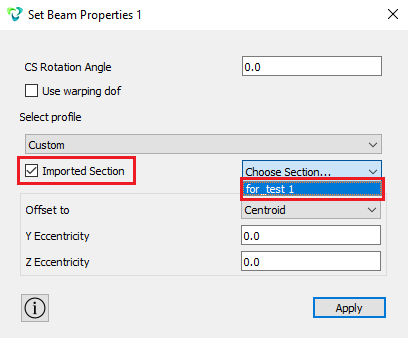
In the Block property ID field, select the section profile – Custom. Click the check mark Imported Section and select the section you imported earlier from the available sections. Click Apply.