Search the documentation
Enter at least 2 characters
Enter at least 2 characters
 |
CAE Fidesys 9.0 Documentation |
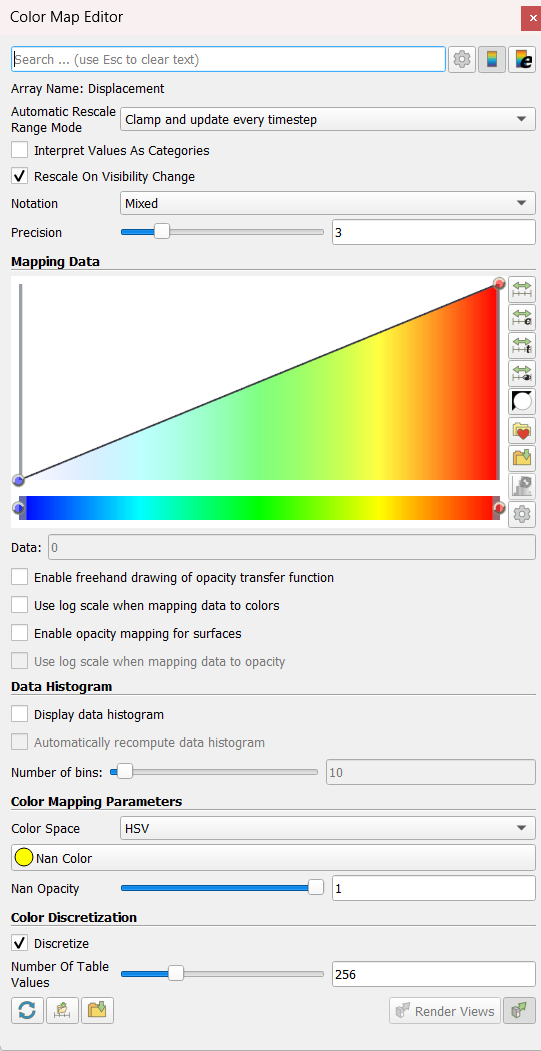
Figure 3. Color editor panel maps in a paragraph showing the main components of the panel
In FidesysViewer the user uses the color map editor to configure color and transparency functions. I have an opportunity toggle color map editor visibility using menu option "View the color map editor." As shown in Figure 3, the panel looks similar to the properties panel. The panel displays color properties cards.
Similar to the Properties panel, the most frequently displayed by default
properties used. The user can toggle the visibility of additional properties
using the  . In addition, the user can search for a
specific property by entering its name in the search field. Any times
when changes in the transfer function occur, it is necessary to re- render,
which can take a long time. Default panel requests rendering on every
change.
. In addition, the user can search for a
specific property by entering its name in the search field. Any times
when changes in the transfer function occur, it is necessary to re- render,
which can take a long time. Default panel requests rendering on every
change.
To avoid this, you need to toggle the  . If this
checkbox is not selected, you must manually update the panel using "Visualization"
buttons.
. If this
checkbox is not selected, you must manually update the panel using "Visualization"
buttons.
Button  restores the application's default settings for the current color cards.
Buttons  and
and  save
current color map settings. FidesysViewer will use it the next
time you need to customize the color map for coloring new data set.
save
current color map settings. FidesysViewer will use it the next
time you need to customize the color map for coloring new data set.
Button
saves by default all settings for an array with the same name, while time
as button
saves for all arrays by default. Please note that this is not will affect
already configured color maps. Moreover, it is saved between sessions,
so FidesysViewer will remember this even after a restart.