Search the documentation
Enter at least 2 characters
Enter at least 2 characters
 |
CAE Fidesys 9.0 Documentation |
1. Import the geometry.
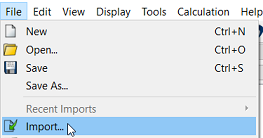
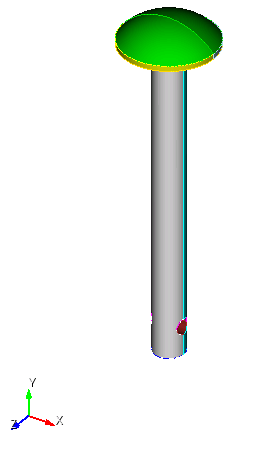
In the top line, select Menu - File - Import. Specify the path to the file multilinear_hardening.igs. If you cannot download the model, right-click on its name and select Save target as.... Then specify the folder where you want to go. place it.
The file can also be found in the folder C:\Program Files\Fidesys\CAE-Fidesys-9.0\preprocessor\bin\help\fidesys_example_tutorials\TestsFromHelp\models and select the specified model.
In the window that appears, click Done, leaving all the parameters as default.
1. Set the size of the finite element mesh.
On the command bar, select the surface mesh module (Mode — Mesh, Entity - Surface, Action — Intervals).
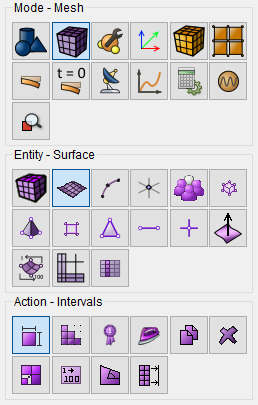
Set:
In the drop-down list, select: Approximate Size;
Select Surfaces: 1;
Approximate Size: 1.
Click Apply.
2. On the command bar, select the surface mesh module (Mode - Mesh, Entity - Surface, Action - Mesh).
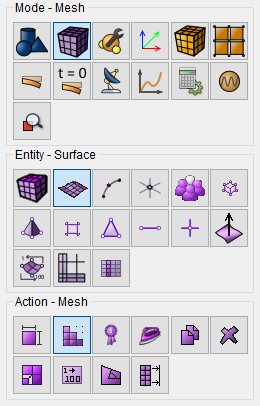
From the list of operations, select Tetmesh.
Set the following parameters:
Select Surfaces: 1;
Tick the box: Advanced;
Optimization Level: None.
Click Apply Scheme.
Click Mesh.
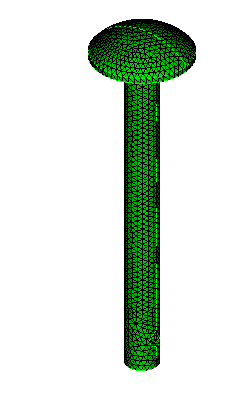
1. Create the material.
In the command bar, select the module for specifying material properties (Mode - Material, Entity— Materials Management).
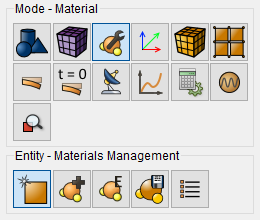
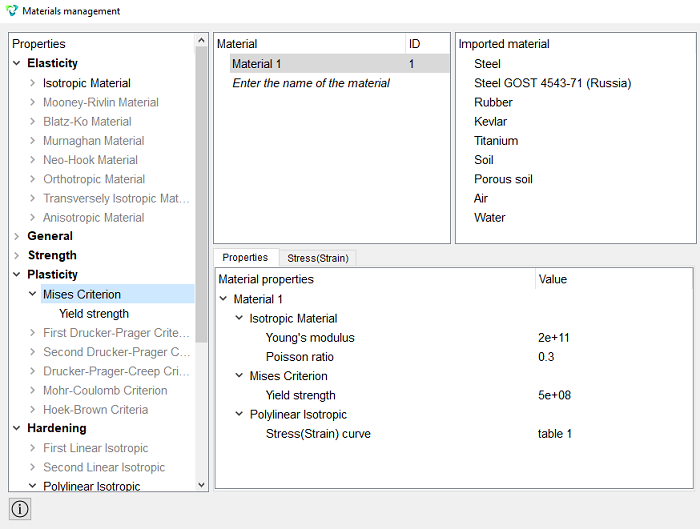
In the window that opens Materials management in the middle column, specify the name of the material Material 1. In the properties column, open the list Elasticity and drag the name The material of the Isotropic in the column Material properties.
Set the following parameters:
Young's modulus: 2e11;
Poisson ratio: 0.3.
In the left column, go to the section Plasticity and choose By Mises.
Yield strength: 5e8.
In the left column, go to the section Hardening-Multilinear isotropic. Drag the name The stress/strain curve in the Properties column of the material.
Double-click on the value "0" and then click on the ellipsis once, appeared next to "0". Check the box on Plastic deformation and add the rows to the table using the Add Row button. Then fill in The table.
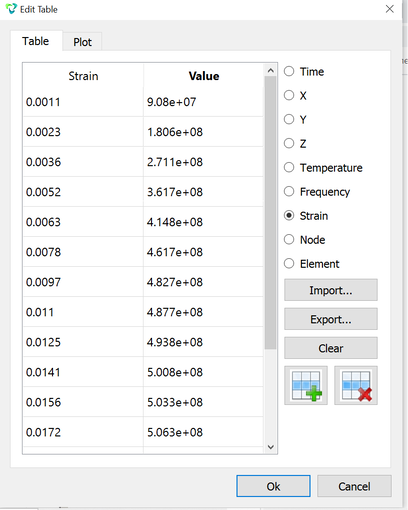
As a result, by going to the Graph tab, the curve σ-ε will be displayed.
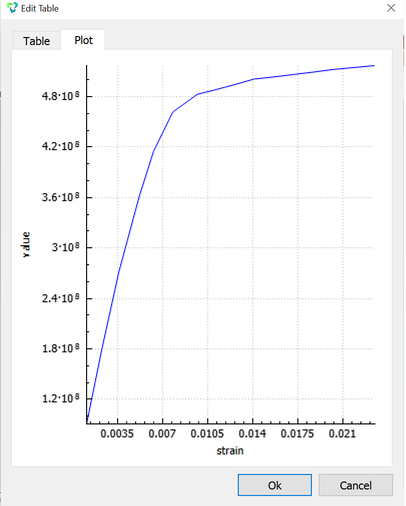
Click Ok.
Click Apply.
Close the Materials management window.
As a result, a material with a polyline is specified hardening.
1. Create a block of the same type of material.
On the command bar, select the block management module (Mode - Blocks, Entity — Block, Action - Add).
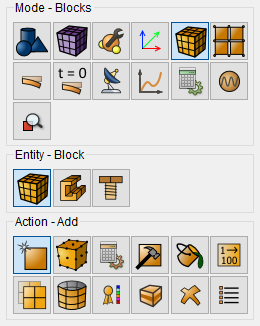
Set the following parameters:
Block ID: 1;
Entity List: Surface;
Entity ID(s): all.
Click Apply.
2. Assign the material to the block.
On the command bar, select the block management module (Mode - Blocks, Entity - Block, Action – Block properties/parameters).
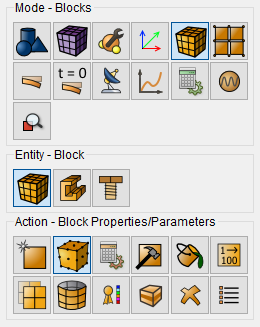
Set the following parameters:
Block ID(s): 1;
Category: Solid.
Material: Material 1;
Order: 1.
Click Apply.
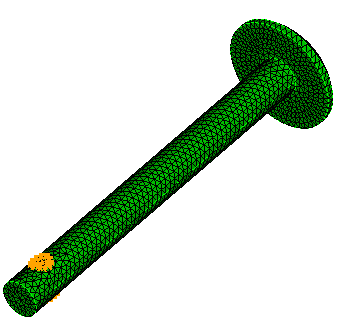
1. Secure the surfaces inside the bolt hole.
On the command panel, select the boundary conditions module (Mode - Boundary Conditions, Entity- Displacement, Action — Create).
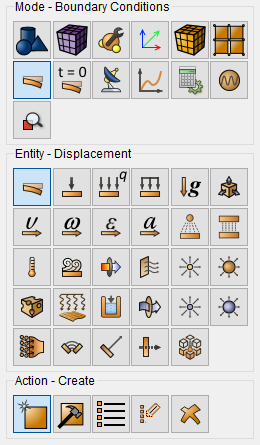
Set the following parameters:
Entity List: Surface;
Entity ID(s): 9 10;
Degrees of Freedom: X-Translation Disp, Y-Translation Disp, Z-Translation Disp;
DOF Value: 0.
Click Apply.
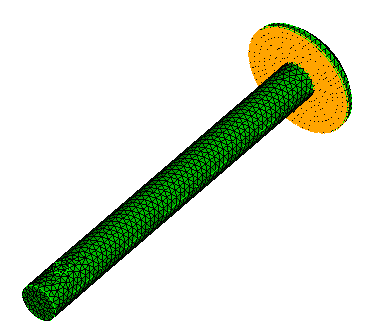
2. Apply pressure to the end part of the cap.
On the command panel, select the boundary conditions module (Mode - Boundary Conditions, Entity - Pressure, Action - Create).
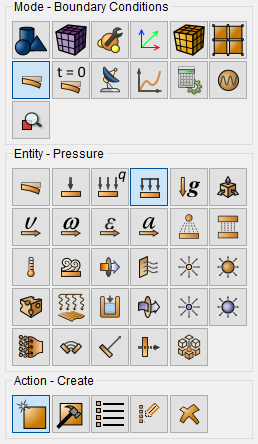
Set the following parameters:
Pressure Entity List: Surface;
Entity ID(s): 4;
Magnitude Value: 2e7.
Click Apply.
1. Specify the type of task that you want to solve.
On the command bar, select the calculation settings module (Mode - Calculation Settings, Calculation Settings — Static, Static — General).
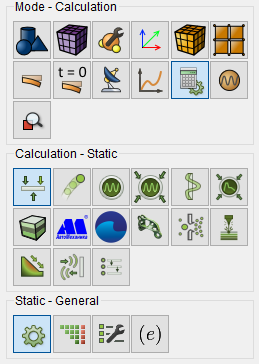
Set the following calculation parameters:
Dimensions: 3D;
Model: Elasticity;
Check the box for Plasticity.
Click Apply.
Click Start Calculation.
2. In the window that opens, select the directory where the result will be saved and enter the file name.
3. In the case of a successful calculation, the console displays the message: Calculation finished successfully at "date" "time".
1. Open the file with the results. There are three ways to do that.
Click Ctrl+E.
From the main menu, select Calculation. Click Open Results.
Select Results on Command Panel (Mode - Results). Click Open results.
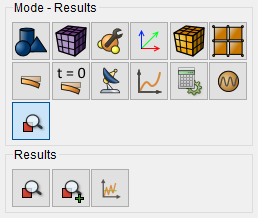
The FidesysViewer window will appear, where you can view the results calculation.
On the toolbar, set the display of the tenth step of the calculation.
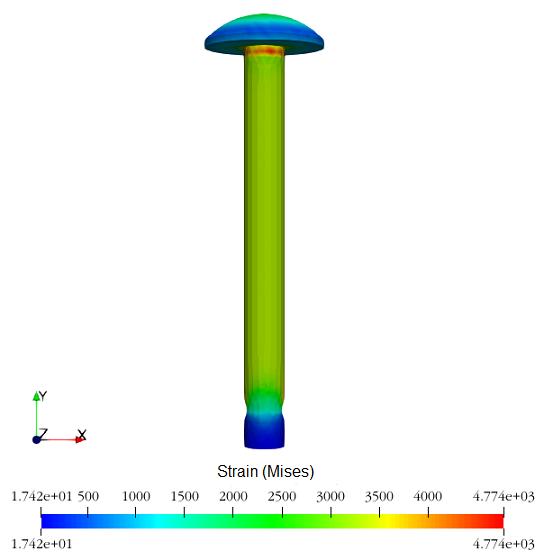
In the FidesysViewer window on the toolbar, set the following parameters:
Display Field: Strain;
Display component: Mises;
Display Type: Surface.

The results of the Mises stress are presented below.
Geometry creating, meshing, setting boundary conditions and materials can be performed using the console interface. Below is a link to the program code that allows you to perform the steps described above manual, you only need to specify the full path and name.