Search the documentation
Enter at least 2 characters
Enter at least 2 characters
 |
CAE Fidesys 9.0 Documentation |
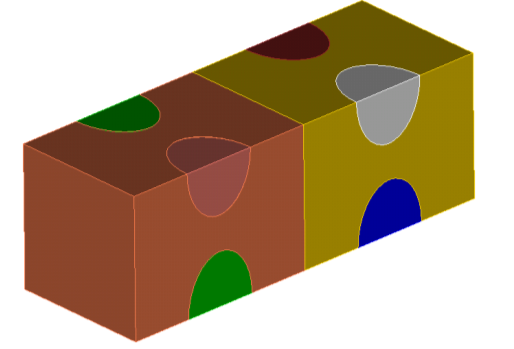
Create a composite.
On the command panel, select the geometry construction module (Mode - Geometry, Entity — Create Composite).
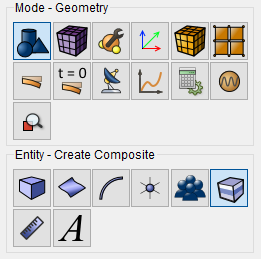
Select from the list Laminated Multy Fiber.
Set the following parameters:
Cord Diameter: 6;
Cord Angle: 30;
Cord Pitch: 8;
Sample Thickness: 16.
Click Create.
On the command bar, select the volume mesh module (Mode — Mesh, Entity - Volume, Action - Mesh).
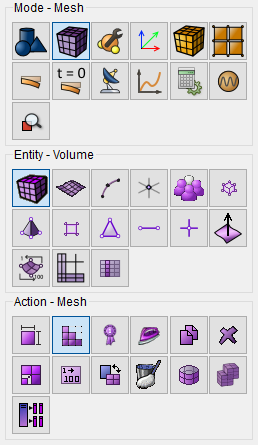
Set the following parameters:
Tetmesh;
Select Volumes: All.
Click Apply Scheme.
Click Mesh.
In the command bar, select the module for specifying material properties (Mode - Material, Entity - Materials Management).
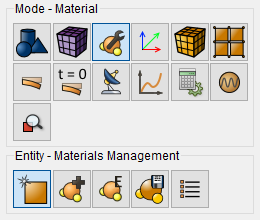
Create two materials.
material 1 - Properties of the thread material:
Young's modulus E = 200000;
Poisson ratio v = 0.25.
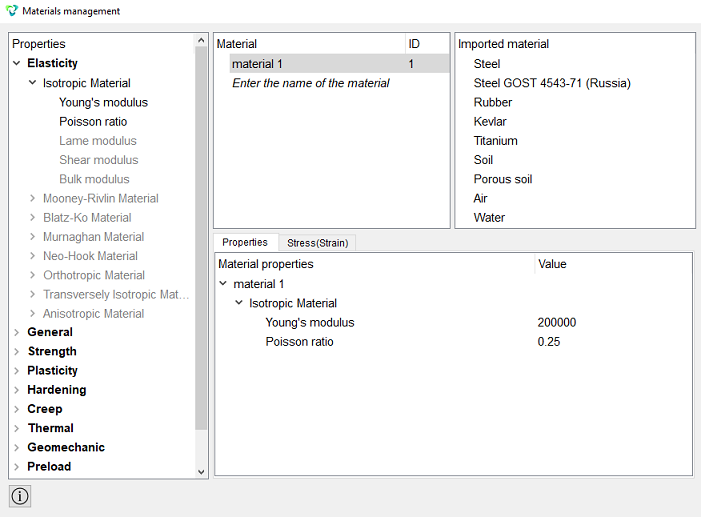
material 2 - Properties of the matrix material:
Young's modulus E = 2;
The Poisson ratio v = 0.49.
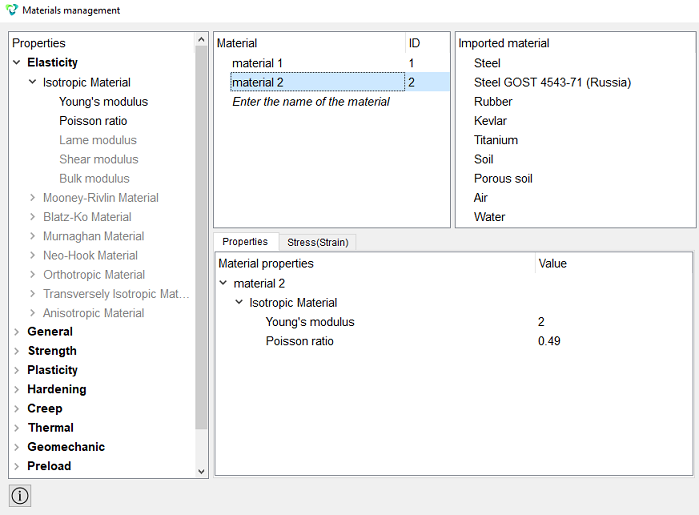
Click Apply.
Close the Materials management window.
When creating the composite, 2 blocks were automatically created.
1. Set the parameters for block №1.
On the command bar, select the block management module (Mode - Blocks, Entity - Block, Action - Block properties/parameters).
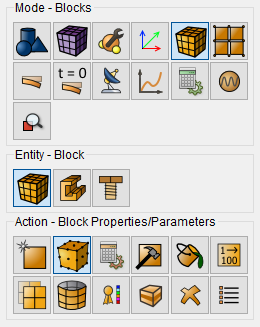
Set the following parameters:
Block ID(s): 1;
Category: Solid;
Material: material 1;
Coordinate System: Global Cartesian;
Order: 1.
Click Apply.
2. Set the parameters for block №2.
On the command bar, select the block management module (Mode - Blocks, Entity - Block, Action - Block properties/parameters).
Set the following parameters:
Block ID(s): 2;
Material: material 2;
Coordinate System: Global Cartesian;
Category: Solid;
Order: 1;
Click Apply.
1. Specify the type of task that you want to solve.
On the command bar, select the calculation settings module (Mode - Calculation Settings, Calculation settings — Effective Properties, Effective Properties - General).
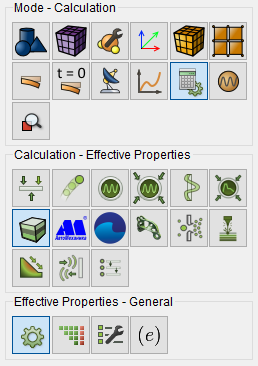
Select:
Dimensions: 3D;
Type of BC: Periodic;
Model: Elasticity.
Click Apply.
Click Start Calculation.
In the window that appears, select:
Type of elastic properties: Orthotropic;
Type of temperature properties: Orthotropic.
Click Process the data.
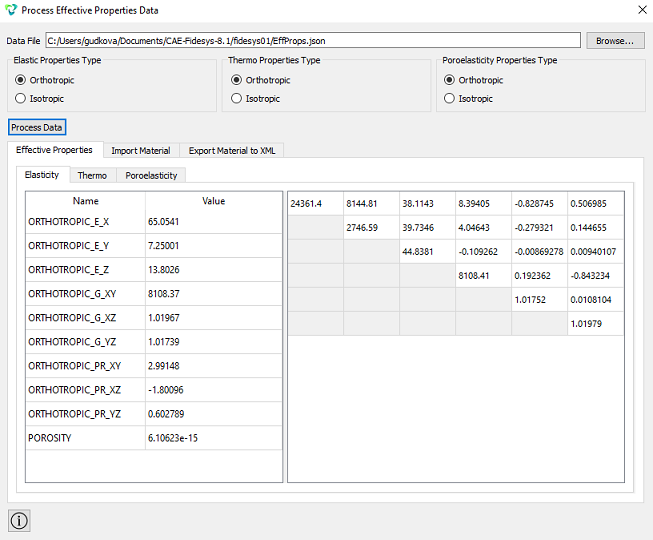
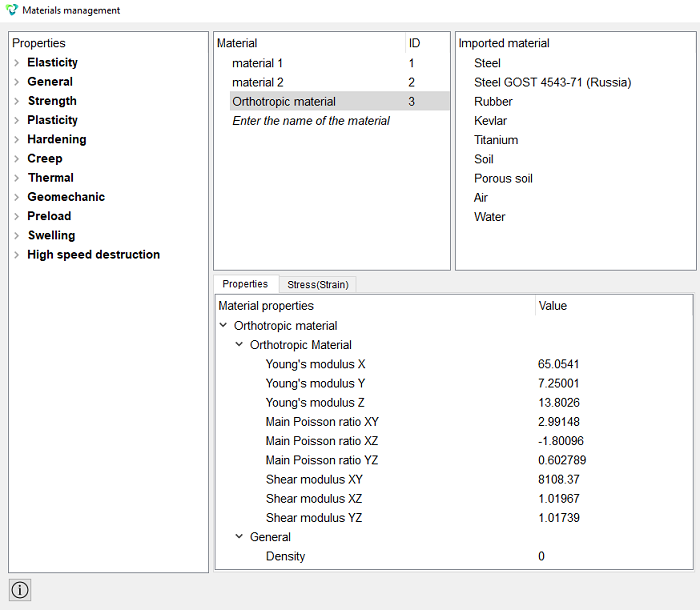
The resulting orthotropic material will be automatically added to the list of materials.
Geometry creating, meshing, setting boundary conditions and materials can be performed using the console interface. Below is a link to the program code that allows you to perform the steps described above manual, you only need to specify the full path and name.