Search the documentation
Enter at least 2 characters
Enter at least 2 characters
 |
CAE Fidesys 9.0 Documentation |
Now the cylinder can be subtracted from the brick to form a hole in the latter.
On the Command Bar, select Entity - Volume, then Action - Boolean. Then, from the drop-down list, select Subtract:
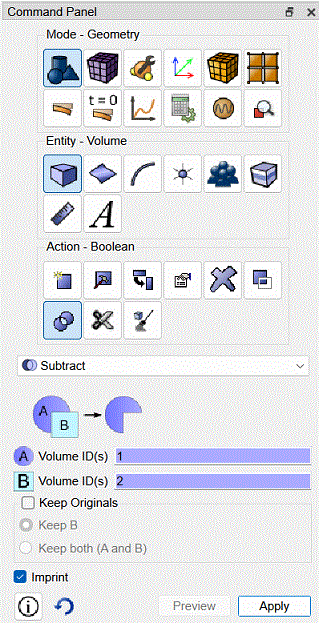
Рис. 9 - Вид панели команд
Enter the value 1 for volume A (brick) and 2 for volume B (cylinder).
After that, set the Imprint option and click Apply.
Instead of entering identifiers (ID) for volumes, you can select a brick or cylinder interactively. Place the cursor in the input window A and click. By moving the cursor in the graphic window, select the brick with the left mouse button; the corresponding ID (1) will be displayed in the input window. Do the same with the input window B. (for a cylinder, ID = 2). By holding down the Ctrl key on the keyboard, you can select multiple entity in the graphics window.
Note that when the described Boolean operation is performed, both original volumes are deleted and replaced by a new volume (with ID = 1). The result of the operation is this single volume: a brick with a through hole, shown below:
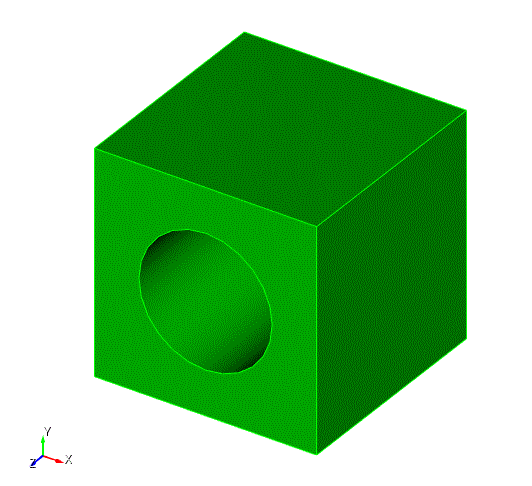
Fig. 10 - Result of step 5
The creation of the geometric model is complete, now you can start building a mesh on it.

