Search the documentation
Enter at least 2 characters
Enter at least 2 characters
 |
CAE Fidesys 9.0 Documentation |
Launch Fidesys. The program window will open:
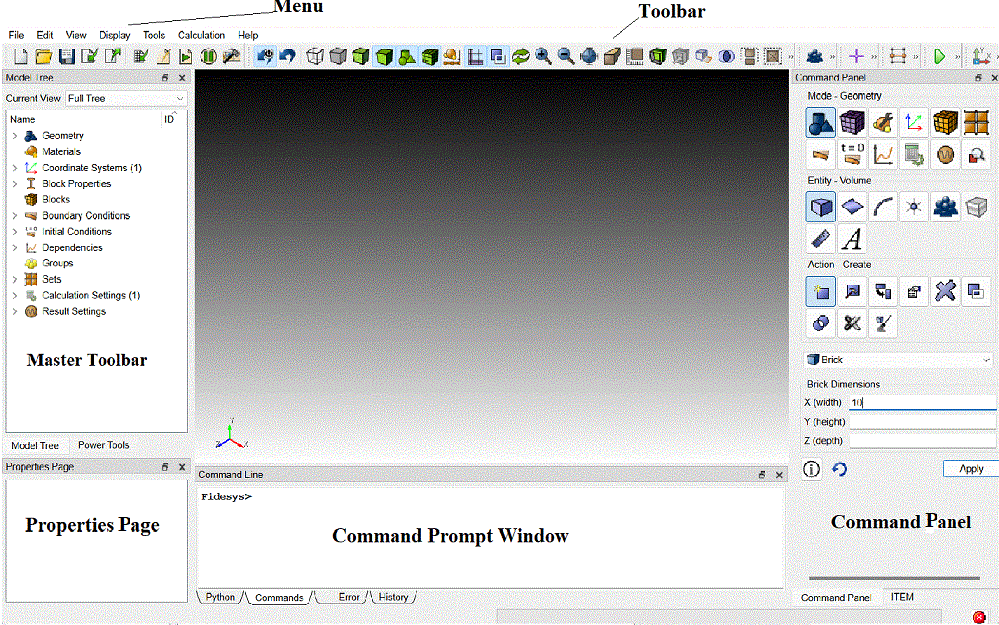
Fig. 2 - Graphical window of the program
Table 2 briefly describes each of the components of this window:
Table 2 Components of the graphic window and their brief description
Graphics Window |
Here the model being processed is displayed. In this window, in particular, zooming in or out, panoramic display and rotation of the model are performed. |
Menu |
The drop-down menu contains functions such as file management, editing, selecting display modes, user preferences, managing the log file, window manipulation, and obtaining help information. |
Toolbar |
A set of icons that partly duplicate and complement the functions of the drop-down menu. |
Master Toolbar |
The set of master tools includes an integrated environment for generating ITEM meshes, a tree of geometric objects, tools for correcting geometry, effective tools for constructing meshes and controlling their quality. |
Command Prompt Window |
The command line window contains user commands and the Fidesys program's response to them, error messages, session history, and, as an option, a script window. The latter is used for programming in the Python environment. |
Command Panel |
Most of the Fidesys commands are available from this panel. Additional panels are generated when certain modes are selected here. |
Properties Page |
Lists of properties (parameters) of the selected geometric model, mesh, boundary conditions, etc. Some of the parameters can be edited directly on this page. |

