Search the documentation
Enter at least 2 characters
Enter at least 2 characters
 |
CAE Fidesys 9.0 Documentation |
To control the type, quality, and speed of rendering, Fidesys uses the graphics mode command with various parameters, such as wireframe, hiddenline, transparent and smoothshade. An example of a command to display an entityas a wireframe is as follows:
FIDESYS> graphics mode wireframe
Fig. 12 shows the appearance of the mesh entity obtained in the previous steps in this mode:
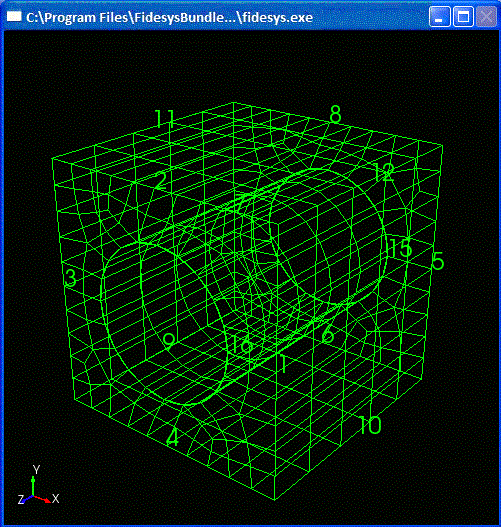
Fig. 12 - Wireframe mesh image
Next, try entering the command:
FIDESYS> graphics mode hiddenline
The entity will be displayed on the screen with hidden lines removed, as shown in Fig. 13:
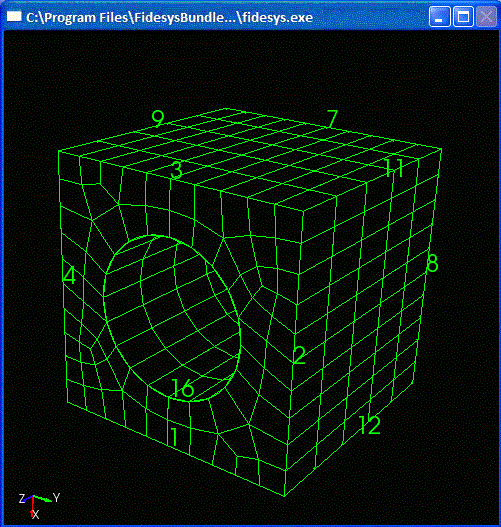
Fig. 13 - Mesh image with hidden lines removed
Then enter:
FIDESYS> graphics mode transparent
The corresponding transparent image is given in Fig. 14:
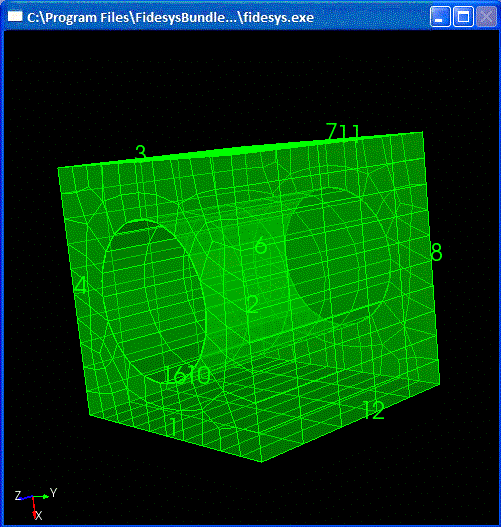
Fig. 14 - Transparent mesh image
Finally, try:
FIDESYS> graphics mode smoothshade
An image of an entity with soft shadows is shown in Figure 15. For detailed information on the rendering options, see Viewing Modes.
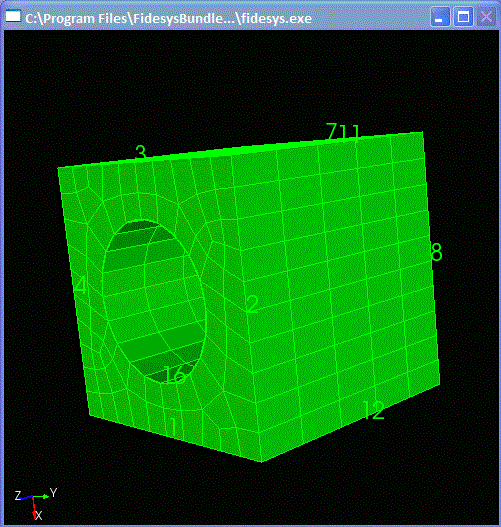
Figure 15 - Mesh image with soft shadows
After building the mesh, Fidesys automatically calculates a number of metrics characterizing its quality and warns the user about certain cases of poor quality. Despite this, it makes sense to check a wider set of quality criteria. To do this, enter the command:
FIDESYS> quality volume 1
The output results of the check are presented in Fig. 16. For explanations of the quality metrics and acceptable ranges of their variation, see the section Evaluation of the mesh quality. For the purposes of this instruction, it is sufficient to ensure that the quality metrics presented are within the acceptable range.
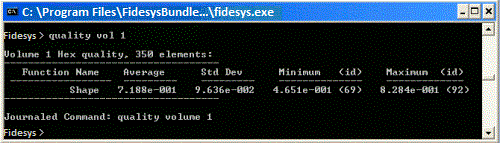
Fig. 16 - Results of quality check of hexagonal mesh generated in volume 1

