Search the documentation
Enter at least 2 characters
Enter at least 2 characters
 |
CAE Fidesys 9.0 Documentation |
CAE Fidesys supports the following materials:
Isotropic material;
Orthotropic material;
Transversely isotropic material;
Mooney Rivlin material;
Material Blatza-Ko;
Murnaghan material;
Elastoplastic material (Mises criterion, Drucker-Prager, generalized Hill, Mohr-Coulomb criterion);
Creep by Norton;
Thermoelastic material;
Poroelastic material (Bio Model).
For Mooney-Rivlin and Murnaghan materials, the following defining relations are used.
Mooney-Rivlin potential:

where D, С01, С10 are Mooney-Rivlin material constants.
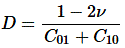
Relation of D, С01, С10 and Poisson's ratio ν:
Murnaghan potential:

where λ , G, C3, C4, C5 are Murnaghan material constants.
CAE Fidesys supports the following yielding models:
More information on the page Setting the yielding model.
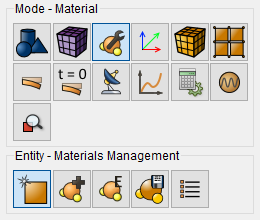
To set the new material, select the setting material properties section on Command Panel (Mode – Materials, Entity – Materials Management ).
Material properties are set in the Materials Management widget.
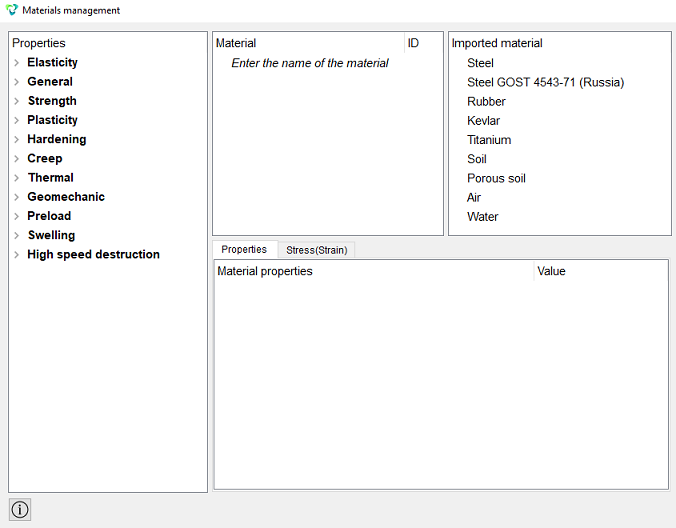
Next, using the “drag & drop” method, add the necessary characteristics from the left column to the Material Properties column.
Select the desired characteristic with the mouse. Hold down the left mouse button and drag the label to Material Properties. Double-click in the Value field opposite the property that appears and specify the correct value.
The right column shows the preset materials. To use these materials in the calculation also drag the material of interest into the Materials column (where the active materials are located). Click the Apply button.
Upon successful addition, the created materials should appear in the Model Tree in the Materials section.
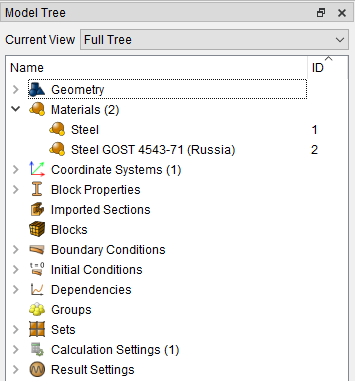
Note: In order to link the material and the model,Block is used.
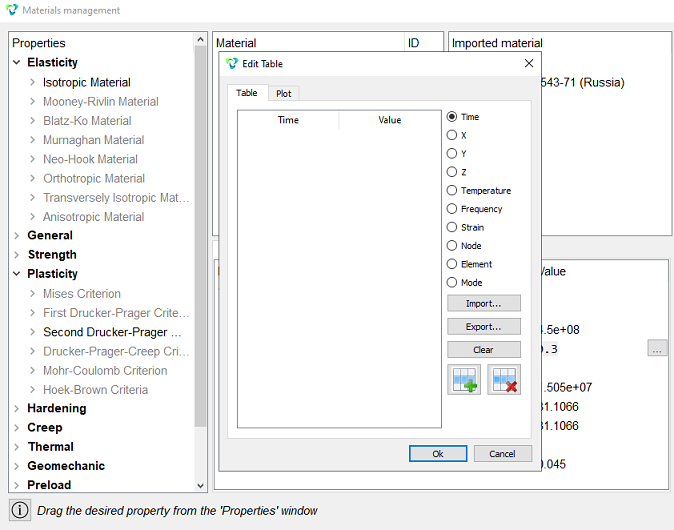
To create tabular dependencies for material characteristics, double-click in the Value field opposite the desired property. A button with a triple point will appear. Click this button. The Edit Table widget opens, where you can set table dependencies.
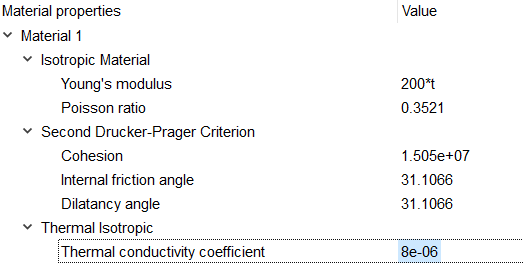
To specify a formula dependence, simply enter the appropriate formula in the Value field and then click Apply.
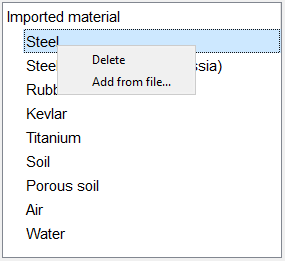
To import materials, right-click in the Imported Materia column. A context menu appears in which you must select Import. Specify the path to the imported material.
Panel settings for an existing material are changed, if an added material with the same name already exists in previously imported materials:
If it is allowed to overwrite it, then put the Overwrite checkbox.
If you need to add near an existing one, then put the Append checkbox, and the material will be added with renaming.
By default, the check is set to Ignore - the material is not imported, the previous material remains.
Click Apply. Next, drag the imported material into the active materials column (Material). Click Apply.
CAE Fidesys supports importing material in XML format.
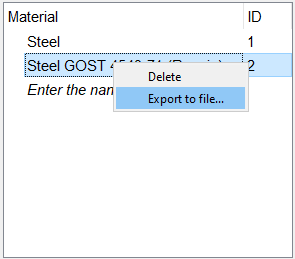
To export the created material, right-click on the material name, select Export in the context menu. Specify the path to save to the file, click Apply.
If the value of a property is not entered, then by default it is assumed to be zero (except for the shear modulus, which is determined automatically based on the entered values of E and ν ).