Search the documentation
Enter at least 2 characters
Enter at least 2 characters
 |
CAE Fidesys 9.0 Documentation |
The functionality Voxel Model in the "Block" section is designed to create FC-files for calculation in Fidesys based on voxel models in RAW format obtained using computed tomography. At the same time, the FC-file is created without using the preprocessor Fidesys, which makes it possible to quickly process a large-volume voxel model (on the order of a billion voxels or more).
The calculated finite element grid in the resulting FC-file coincides with the original voxel model in the binary RAW file: each voxel is transformed a finite element of the first order in the form of a regular tetrahedron (cube). After generation, the FC file can be loaded into the preprocessor Fidesys for editing purposes, or submitted to the FidesysCalc input via the operating system command line to perform calculations without the preprocessor at all.
To use the functionality Voxel Model, you must first select the input RAW file in the "File" section. Next, the encoding type is selected: 8 or 16 bit (how many bits per voxel). Next, three triples of numbers are indicated:
starting position;
original model dimensions;
fragment dimensions.
For example, if the size of the original voxel model stored in a RAW file is 50x50x50 voxels, and we want to cut a fragment of 44x40x36 voxels from the center of the model (and generate an FC-file from it), then we need to specify the position of the initial voxel (3; 5; 7).
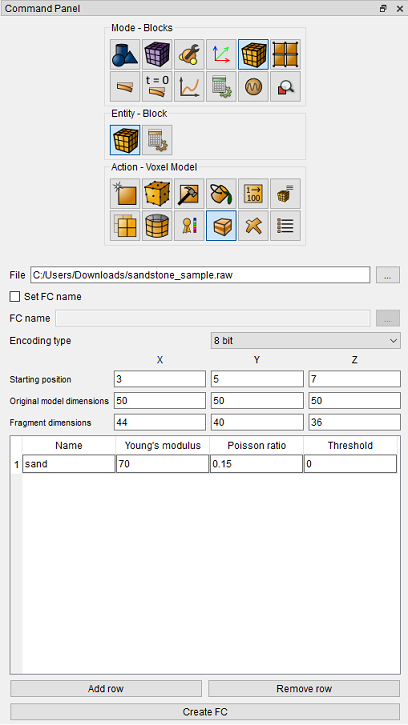
Then the materials are added. Four fields are set for each material: name, Young's modulus, Poisson ratio and threshold. For example, in the case of 8-bit encoding, each byte in a binary RAW-file stores information about the corresponding bill as a number from 0 to 255 (in the case of 16-bit encoding, from 0 to 65535). If in this case the model includes one material and pores and it is known that values from 0 to N–1 correspond to pores, and values from N to 255 correspond to the material, it follows in the table create a single line corresponding to this material, specify the name, Young's modulus, Poisson ratio and N – 1 as the threshold. The figure below shows an example of working with a voxel model with a single material, when the value 0 corresponds to pores, and values from 1 to 255 correspond to the material.
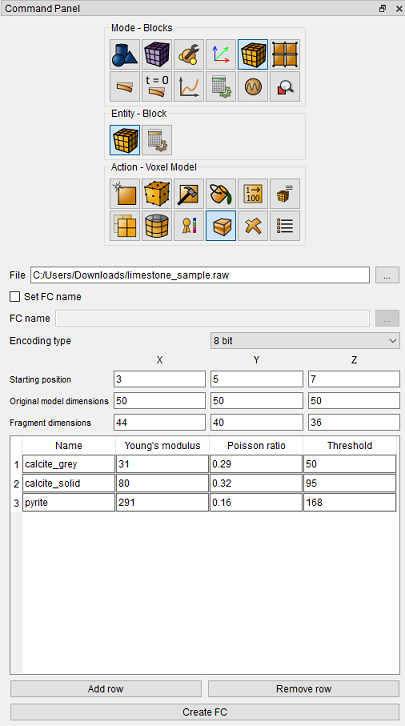
If there are several materials, you need to add them all (by pressing the "Add row" button one after the other). The figure below shows an example of working with a voxel model containing three materials (plus pores). Here, values from 0 to 50 correspond to pores, from 51 to 95 to the first material, from 96 to 168 to the second material, and from 169 to 255 to the third material.