Search the documentation
Enter at least 2 characters
Enter at least 2 characters
 |
CAE Fidesys 9.0 Documentation |
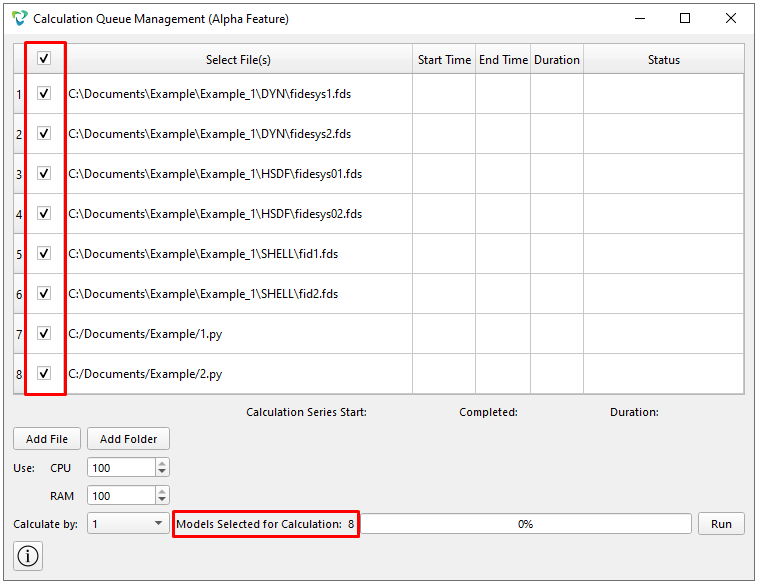
"Calculation Queue Management" is designed to automate the launch and comprehensive monitoring of batch calculations of computational models in *.fds and *.py formats. This example discusses the procedure for creating a queue, configuring the parameters of the computing environment, and then analyzing the results of a series of calculations.
There are two ways to run the calculation files in "Calculation Queue Management":
Click on the button Add File.
Click on the button Add Folder.
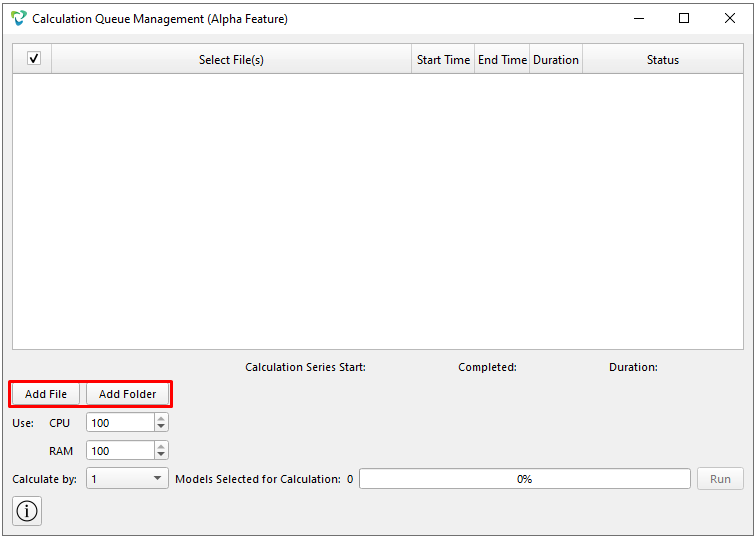
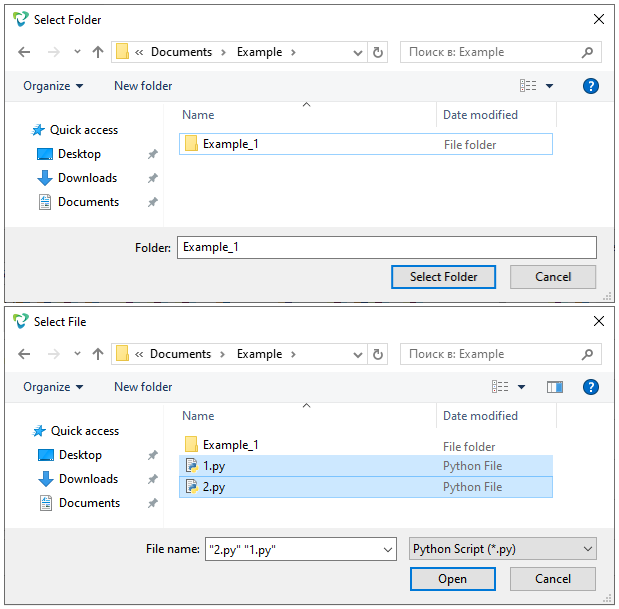
A window opens with the working directory. Select *.fds, *.py files, or a folder (only *.fds).
Batch processing mode is provided to optimize the process of transferring groups of files:
When the Search in subfolders option is enabled, all files from the selected directory are automatically downloaded, including the contents of all levels of nesting.
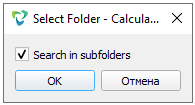
The added files are in format *.fds and *.py are automatically queued.
Set the resources of the processor (CPU) and RAM.
Set the number of models to run simultaneously.
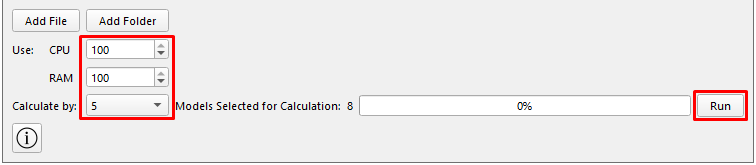
Click Run.
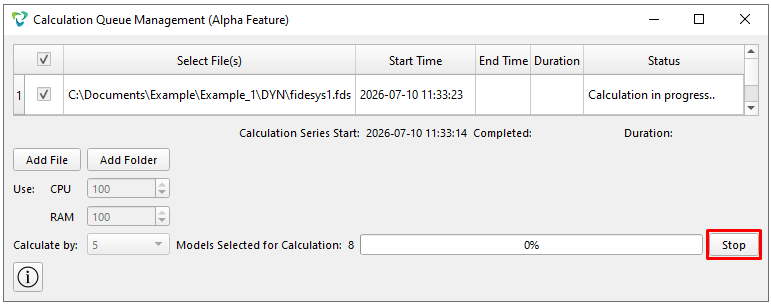
1. Stopping the calculation
To do this, click on the "Stop" button.
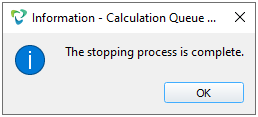
At the end of the stop, click OK.
Add, move, or delete the file(s) in the queue.
2. Solution monitoring
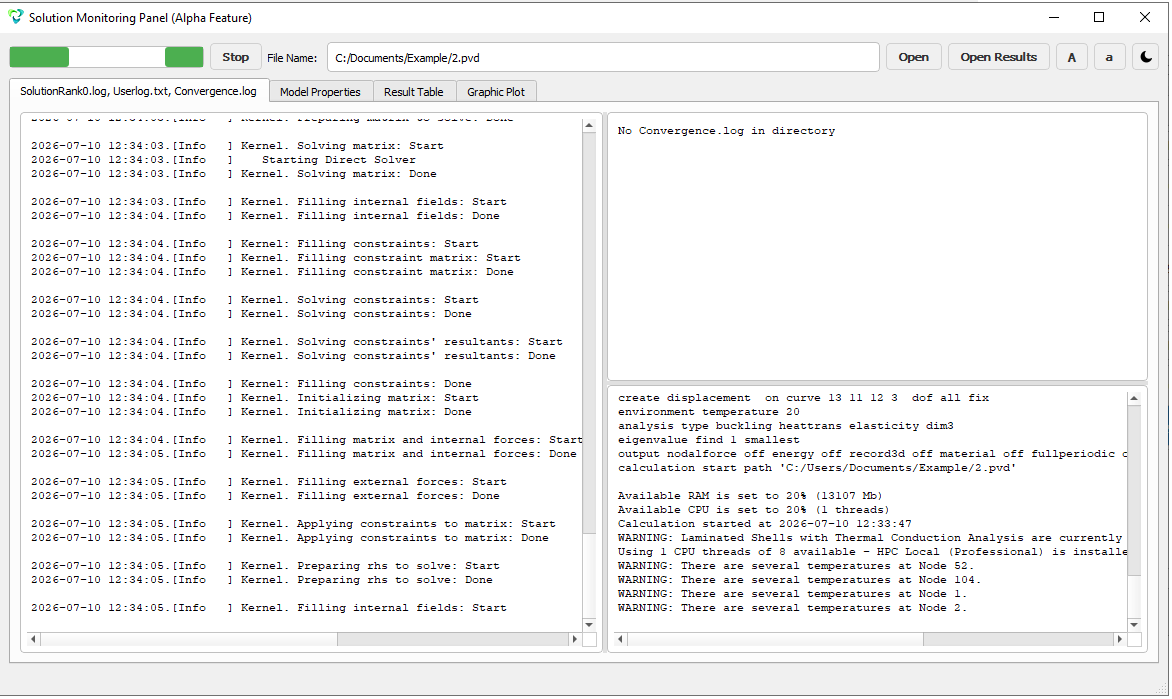
In order to monitor the update of the solver's log files in real time, track the process of convergence of the calculation and monitor the results for the saved calculation steps/sub-steps in the result table, open "Calculation Queue Management (Alpha Feature)":
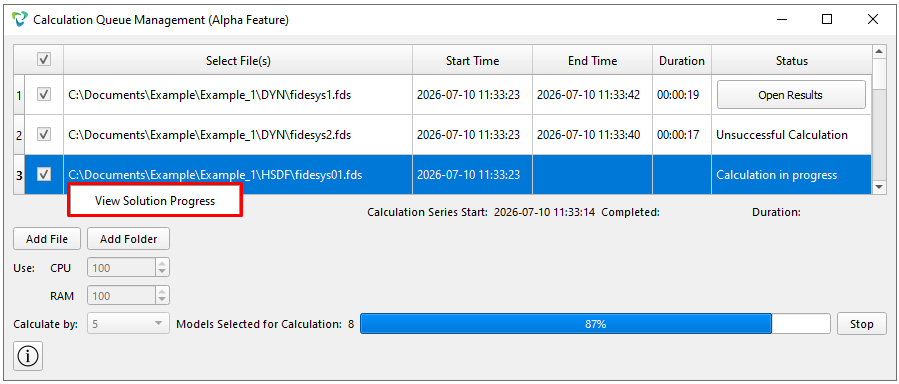
To do this, right-click on the file *.fds or *.py in the queue.
Click on the button View Solution Progress.
As a result, it will open "Solution Monitoring Panel (Alpha Feature)".
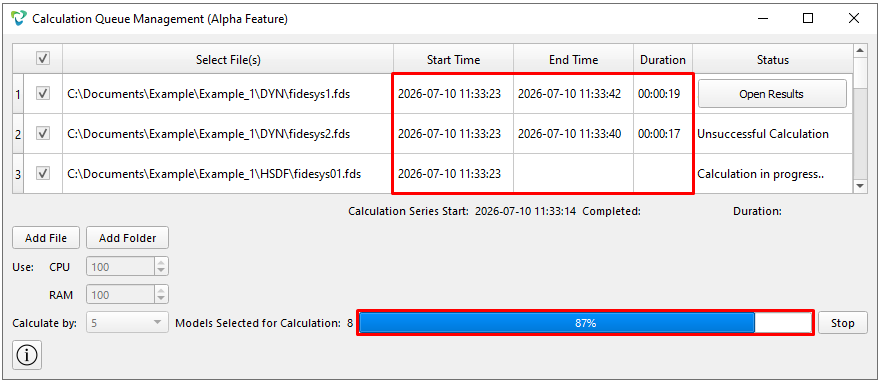
3. Tracking execution statistics for each model in the queue
Start Time;
End Time;
Duration;
Timeline progress.
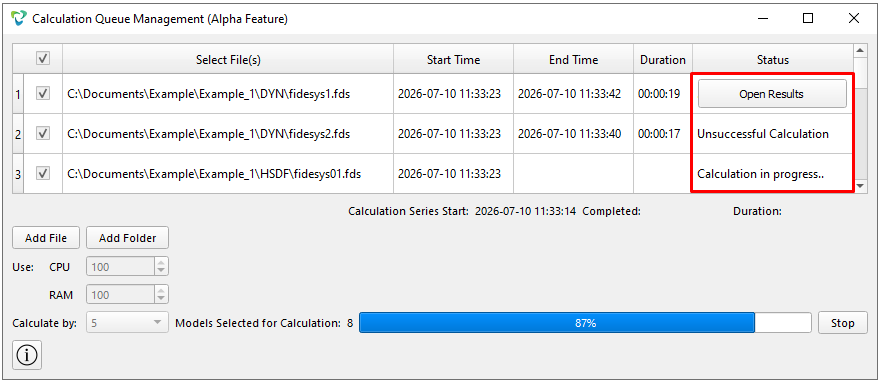
4. Viewing the progress status
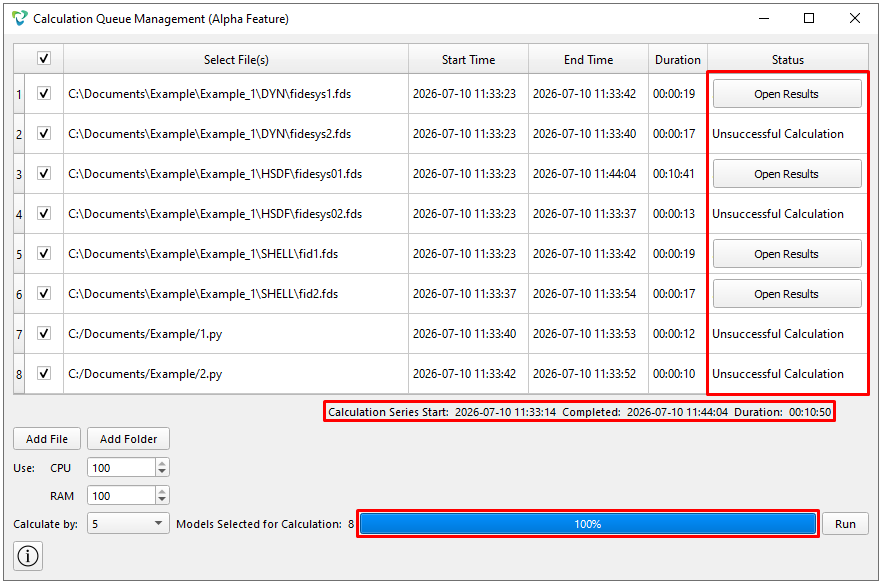
Calculation in progress;
Unsuccessful Calculation;
Open Results.
5. Analysis of calculation results
5.1. Open the file with the results of successfully completed calculations:
This can be done by clicking on the button Open Results.
The window FidesysViewer will appear where you can view the calculation results.
5.2. Review the results of unsuccessful calculations:
To do this, click on View Solution Progress.
There are two levels of verification of the results:
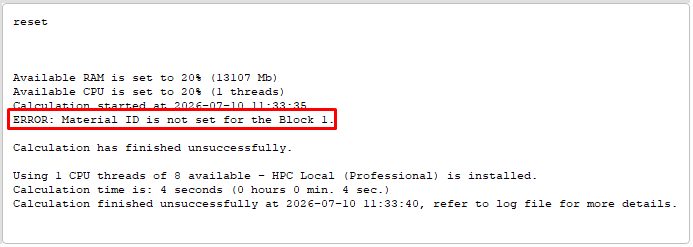
1. Errors when starting the calculation
A window will appear Solution Monitoring Panel (Alpha Feature), indicating the reason for the unsuccessful calculation.
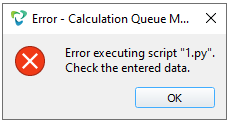
2. A drop in the model's training level
An error window appears in the file script.
1. Check out the overall execution statistics:
Calculation Series Start;
Completed;
Duration;
Timeline progress: 100%.
2. Check out the status of completed payments:
Unsuccessful Calculation;
Open Results.