Search the documentation
Enter at least 2 characters
Enter at least 2 characters
 |
CAE Fidesys 9.0 Documentation |
To make a selection in the Visualization mode, you must use toolbar at the top of the viewing frame. In FidesysViewer There are two ways to select cells, points, or blocks: interactive and non-interactive.
FidesysViewer enters non-interactive selection mode when you
press one of the following buttons:  .
The type of selection you create will depend on the button you press.
In non-interactive When selected, the cursor will switch to a crosshair
and you can click and drag it to create a selection area. As soon as you
release the mouse button, FidesysViewer will create a highlight
for any elements in the selected area and will return to the default interaction
mode.
.
The type of selection you create will depend on the button you press.
In non-interactive When selected, the cursor will switch to a crosshair
and you can click and drag it to create a selection area. As soon as you
release the mouse button, FidesysViewer will create a highlight
for any elements in the selected area and will return to the default interaction
mode.
To select visible cells, use the  , and for visible
points -
, and for visible
points -  . Visible cells (and points) are only those
cells (or points) that are currently are displayed on the screen. Thus,
elements that are closed or too too small to display on the screen will
not be selected. If you want to choose data elements that fall within
the frustum or cross her, regardless of whether they were visible from
the viewing angle when selection is made, use the
. Visible cells (and points) are only those
cells (or points) that are currently are displayed on the screen. Thus,
elements that are closed or too too small to display on the screen will
not be selected. If you want to choose data elements that fall within
the frustum or cross her, regardless of whether they were visible from
the viewing angle when selection is made, use the  for cells or
  for points (Fig. 1).
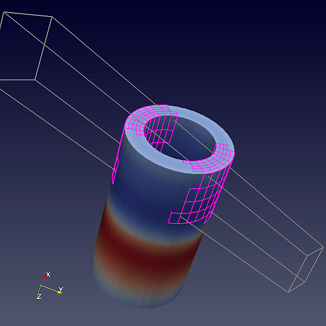
Figure 1. Result of end-to-end selection cells showing the frustum used for identification selected cells. Cells that fall within this truncated pyramid are selected or cross it, regardless of whether they were visible from the viewing angle, when the choice was made
To select visible blocks, use button  .
Please note that there is no pass-through for blocks choice.
.
Please note that there is no pass-through for blocks choice.
While most selection modes allow you to define the selection area as
a rectangle, you can define the selection area as a closed polygon using
the buttons  and
and  for dots. However, this is limited to surface elements (i.e., there is
no frustum-based selection).
for dots. However, this is limited to surface elements (i.e., there is
no frustum-based selection).
To enter interactive selection mode in FidesysViewer the user
needs to click on one of the buttons:  .
In that selection mode affects visible elements (cells or points). FidesysViewer
highlights elements of a dataset when the user places the cursor over
them and clicks on it. Repeatedly clicking on different elements adds
them to the selection. The user ends the interactive selection mode, by
clicking the pressed interactive select button or pressing the Esc key.
This The mode can also be ended by switching to non-interactive selection
mode. Use the
.
In that selection mode affects visible elements (cells or points). FidesysViewer
highlights elements of a dataset when the user places the cursor over
them and clicks on it. Repeatedly clicking on different elements adds
them to the selection. The user ends the interactive selection mode, by
clicking the pressed interactive select button or pressing the Esc key.
This The mode can also be ended by switching to non-interactive selection
mode. Use the  to select all
cells with the same value in the current color array.
to select all
cells with the same value in the current color array.
For interactive selection of cell data use the  and for points -
  .
.
To clear the selected elements, you can use the button  .
.
Some of these buttons have hot keys keys, for S to select visible cells, D to select visible points, F through selection of cells and CTRL through selection of points. You can notice these the keys are located next to each other on the keyboard, starting with S , and are in the same order as the toolbar buttons themselves.
 Did you know?
You can expand the current selection by holding down the CTRL key while
clicking and dragging in selection mode. Then FidesysViewer will
add the selected elements to the current selection. You can also subtract
from the current selections using ↑ or even
switch using CTRL + ↑.
For For the same effect, you can use the selection modifier buttons on
toolbars. For example, add a selection:  , separate
selected:
, separate
selected:  , toggle selection:
  .
However, these modifiers do not work if the type selection (or selected
data) is different from the current selection. If this so the current
selection will be cleared (as usual) and then a new one will be created
choice.
.
However, these modifiers do not work if the type selection (or selected
data) is different from the current selection. If this so the current
selection will be cleared (as usual) and then a new one will be created
choice.