Search the documentation
Enter at least 2 characters
Enter at least 2 characters
 |
CAE Fidesys 9.0 Documentation |
To save an animation as a series of images or a video file, use menu item File - Save Animation. A dialog box will open saving animation, in which you choose where to save the file and which one format to use. After selecting a file and format, a dialog box will appear window (Fig. 1).
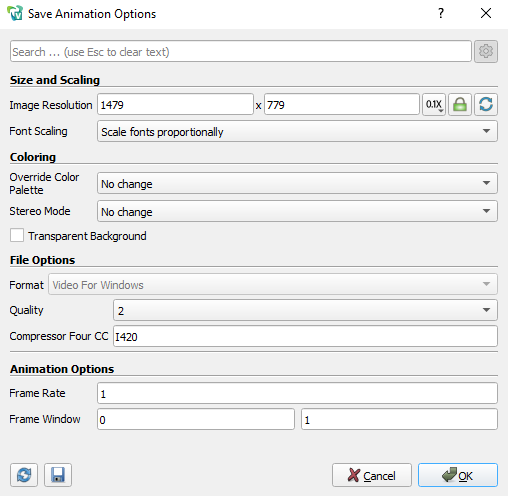
Figure 1. Options dialog box saving animation" in FidesysViewer, which is used to configure saving animation
The following options are available:
 on the panel, to fix the size of the view to a suitable aspect ratio.
For formats with different options, such as compression levels, in the dialog The "Animation Saving Options" window contains options specific to for format. The PNG format has a Compression Level parameter, which is located ranging from 0 (no compression) to 9 (maximum compression). Format options JPEG: "Quality" (from 0 to 100) and "Progressive", allowing you to save progressive scan JPEG file. The TIFF file format has “Compression” parameter with possible values of None, PackBits and Deflate. Format BMP file has no parameters. AVI and Ogg video formats are also available.
FidesysViewer has the ability to save animation in the format msp4. To do this, go to the standard line Tools - Manage Plugins.

In “Local plugins” find MP4, check the “Startup” checkbox and click “Download selected.”

As a result, a new animation will be available in the animation save dialog box. format.
