Search the documentation
Enter at least 2 characters
Enter at least 2 characters
 |
CAE Fidesys 9.0 Documentation |
There are currently two ways to save/restore a model in CAE Fidesys. A file can be saved with either the Exodus or CAE Fidesys File method. The method of choice is determined by a set command. The CAE Fidesys method is the default.
The CAE Fidesys file is a binary cross-platform compatible file for the storage of a CAE Fidesys model that is compact in size and efficient to access. It includes both the geometry and the associated mesh, groups, blocks, sidesets, and nodesets. Mesh and geometry are restored from the CAE Fidesys file in exactly the same state as when saved. For example, element faces and edges are persistent, as well as mesh and geometry ids. The Graphical User Interface version of CAE Fidesys also provides a toolbar with direct access to file operations using the CAE Fidesys File method described here.
New
Creates a new blank model with default name, closing the current model. The New command essentially acts like the reset command.
Open '<filename>'
Opens an existing *.cub file, closing the current model.
Save
A default file name is assigned when CAE Fidesys is started (in very much the same way the journal files are assigned on startup) in the form cubit01.cub, for example. The current model filename is displayed on the title bar of the CAE Fidesys window. Typing save at any time during your session will save the current model to the assigned *.cub file. The *.cub file includes the *.sat file and the mesh. Groups, blocks, sidesets and nodesets are also saved within the *.cub file. To change the name of the current model, or to save the model's current geometry to a different file, use the save as command. Note that 'save <file.cub>' is NOT a valid command.
Save
Save As 'filename.cub' [Overwrite]
Save CAE Fidesys "filename.fidesys' [Overwrite] [Journal]
The set file overwrite command can be toggled on and off to allow overwriting when using the save as command. The command is defaulted to not allow overwriting.
The "journal' keyword will cause the existing journal file to be embedded in the .CAE Fidesys file. From the GUI, this option is on by default.
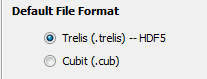
The default file type (.CAE Fidesys (HDF5) versus .cub (legacy CAE Fidesys format) is controlled from the Geometry Defaults options panel. The default type is CAE Fidesys. The Save and Save As commands are sensitive to this setting and will write . CAE Fidesys or .cub files based on the setting. The setting is persistent between sessions.
The command, 'save CAE Fidesys . . .' will always write a .CAE Fidesys file regardless of the option setting.
Set File Overwrite [On|OFF]
A backup file is created by default, allowing access to previous states of the model. The backup files are named *.cub.1, *.cub.2... The user can set the total number of backups created per model with the following command (the default number of backups is 99,999):
Set Save Backups <number>
As soon as the number of model backups reaches the maximum, the lowest numbered backup file will be removed upon subsequent backup creation.
To check on the status of a 'set' command, type in the command in question without any options. For example, to check which save method is currently toggled, type:
Set Save
Import
Appends a *.cub file to an existing model.
Import CAE Fidesys 'filename.cub' [merge_globally]
Export
In addition to saving an entire model, one can use the export command to save only a portion of a model. The geometry and associated mesh, groups, blocks, sidesets and nodesets are exported. Only bodies or free surfaces, curves or vertices can be exported to a CAE Fidesys file.
Export CAE Fidesys 'filename.cub' entity-list