Search the documentation
Enter at least 2 characters
Enter at least 2 characters
 |
CAE Fidesys 9.0 Documentation |
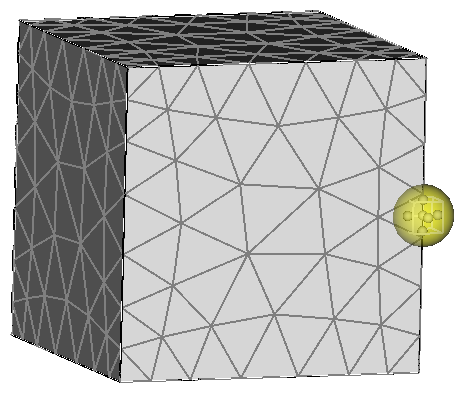
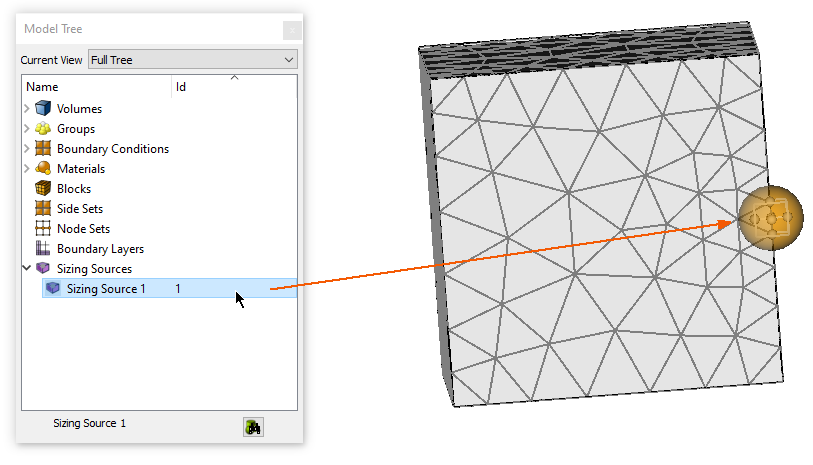
An intuitive method for adding a sizing function to the tetrahedral meshing workflow is introduced with CAE Fidesys17.1 in May 2020. This method places a graphical ellipsoid on the model allowing the user to modify the geometry and mesh size settings of the ellipsoid thereby affecting the impact of the sizing function on the mesh.
select [sizing_source <ids>] [{add|remove}]
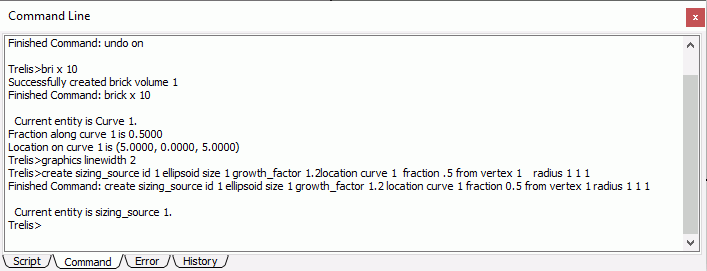
create sizing_source id ellipsoid [location <options>] \
[radius <xval> <yval> <zval>] [axis <options>] [size <value>] growth_factor <value>]
delete sizing_source id <value>
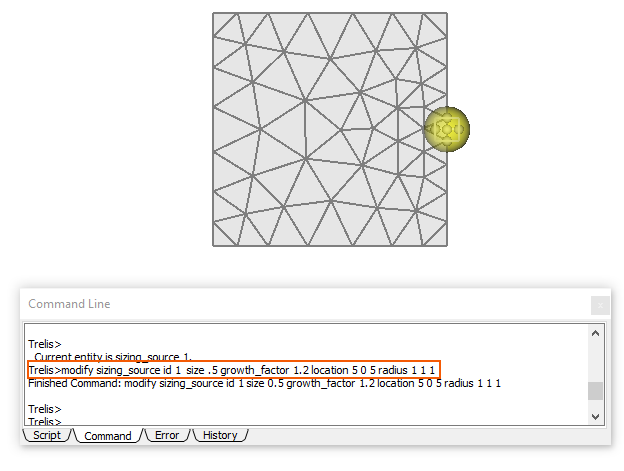
modify sizing_source id ellipsoid [location <options>] \
[radius <xval> <yval> <zval>] [axis <options>] [size <value>] growth_factor <value>]
sizing_source visibility {on|off}
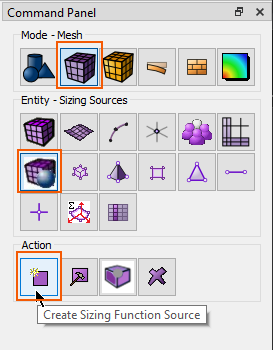
Navigate to the Sizing Sources action buttons
Select Mode - Mesh
Select Entity - Sizing Sources
Select Action - Create Sizing Function Source
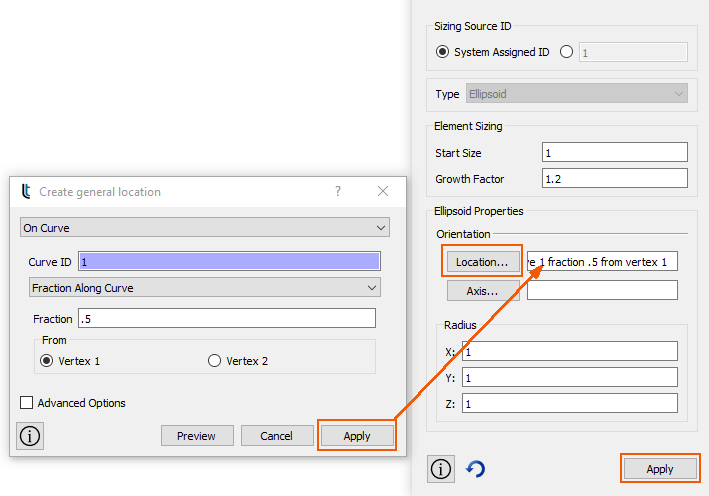
After creating the sizing source ellipsoids the next step is to assign these sizing functions to volumes. Simply creating the sizing sources will not affect the meshing. In order to have these sizing sources act as sizing functions the sources must be attached (or assigned) to volumes.
Note: Use this same command panel to remove the association between Sizing Source sizing functions and volumes. Select the Remove Volume(s) radio button then click Apply.
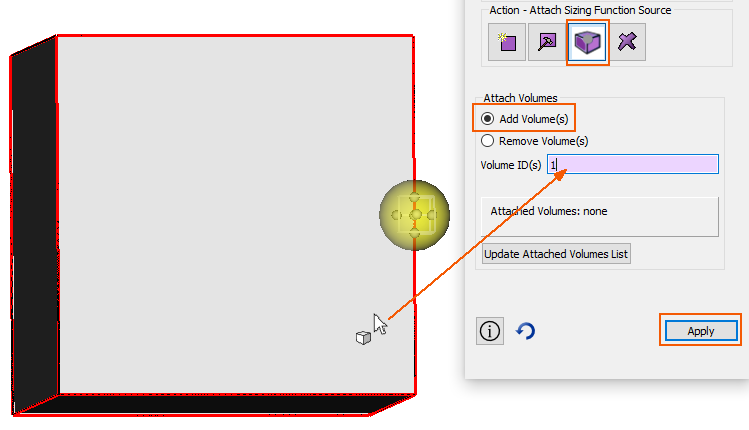
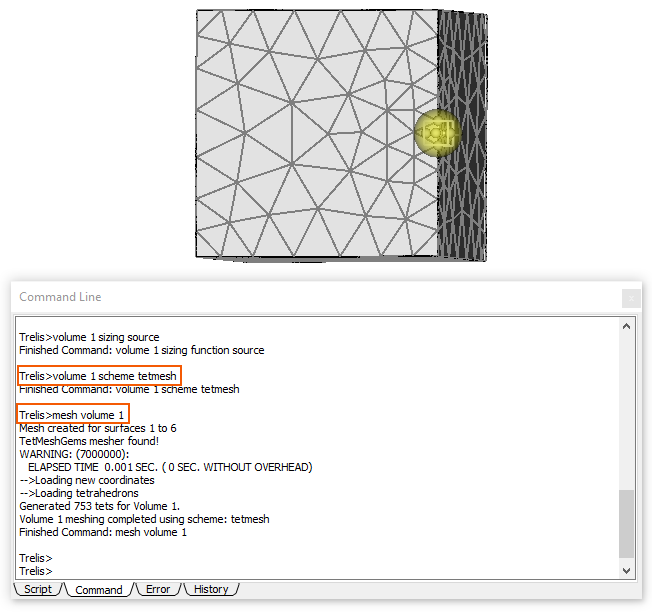
Once the sizing sources are created and assigned to volumes, mesh the volumes using CAE Fidesys.
volume <n> scheme tetmesh
mesh volume <n>
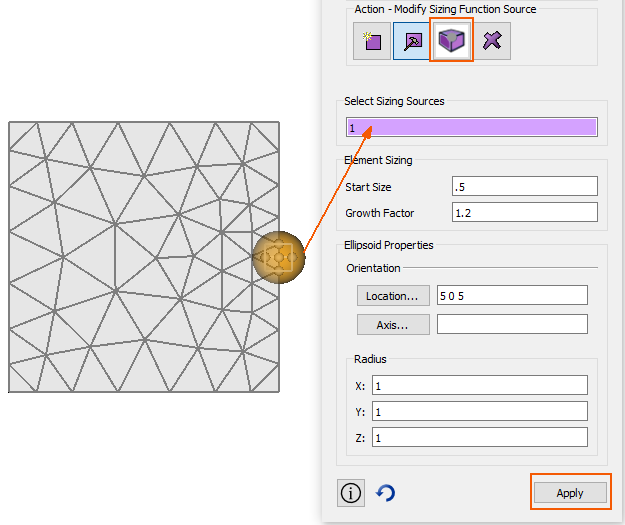
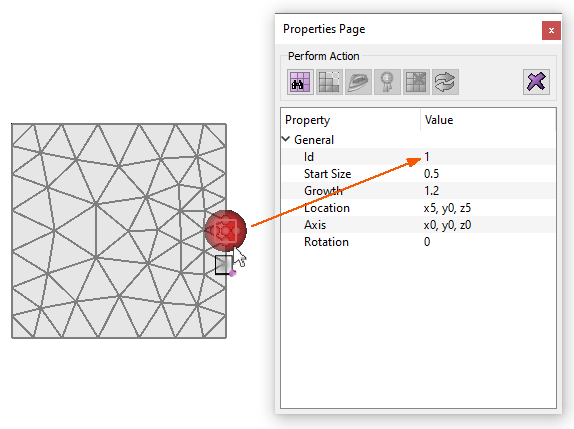
An existing Sizing Source may be modified using one of several methods:
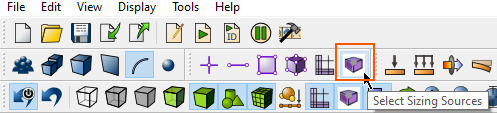
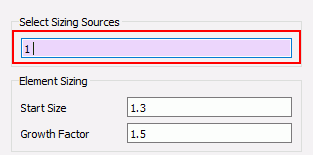
Users may select a Sizing Source using several methods:
From the command line
select sizing_source <id>
The visibility of a Sizing Source can be toggled on and off from the toolbar

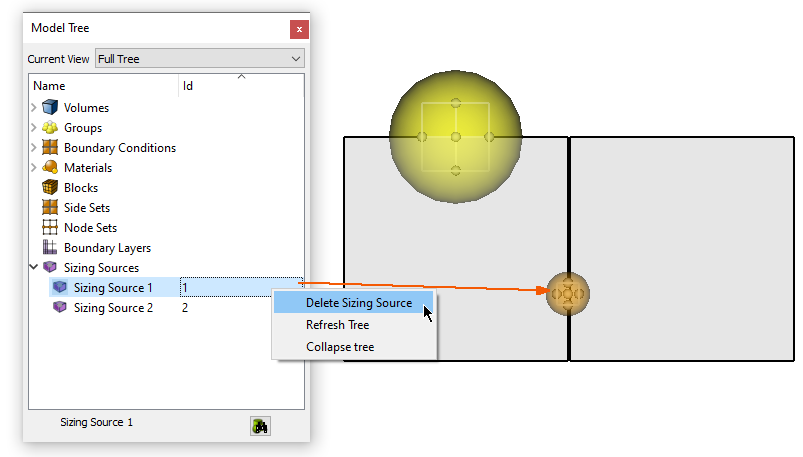
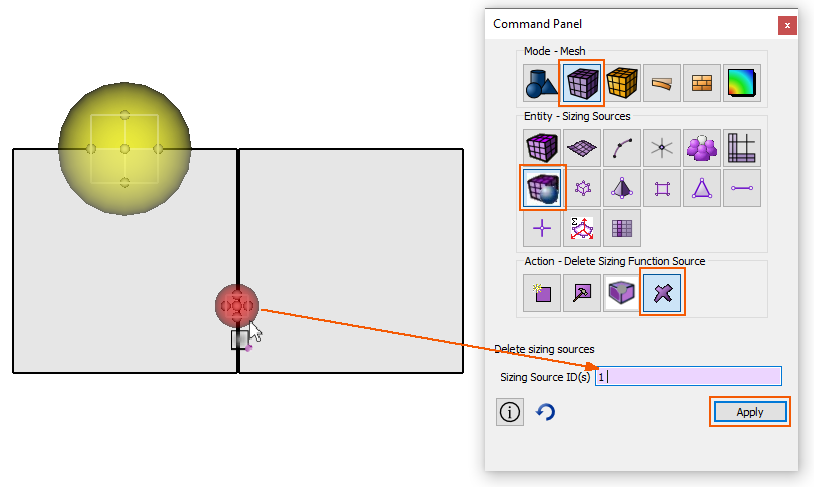
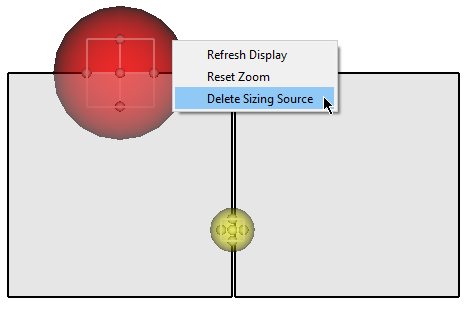
A Sizing Source may be deleted using several methods:
From the command line
delete sizing_source id <n>