Search the documentation
Enter at least 2 characters
Enter at least 2 characters
 |
CAE Fidesys 9.0 Documentation |
Glyphis used to place markers or glyphs at point locations in the input dataset. The glyphs can be oriented or scaled based on vector and scalar attributes on those points
To create this filter in paraview, you can use the Filters menu, as
well as the  button
on the Common filters toolbar. You first select the type of glyph using
one of the options in Glyph Type. The choices include Arrow, Sphere, Cylinder,
etc. Next, you select the point arrays to use as the Orientation Array
(selecting No orientation array will result in the glyphs not being oriented).
Similarly, you select a point array to serve as the glyph Scale Array
(no scaling is performed if No scale array is chosen).
button
on the Common filters toolbar. You first select the type of glyph using
one of the options in Glyph Type. The choices include Arrow, Sphere, Cylinder,
etc. Next, you select the point arrays to use as the Orientation Array
(selecting No orientation array will result in the glyphs not being oriented).
Similarly, you select a point array to serve as the glyph Scale Array
(no scaling is performed if No scale array is chosen).
If the Scale Array is set to a vector array, the Vector Scale Mode property is available to select which properties of the vector should be used to transform each glyph. If Scale by Magnitude is chosen, then the glyph at a point will be scaled by the magnitude of the vector at that point. If Scale by Components is chosen, glyphs will be scaled separately in each dimension by the vector component in that dimension.
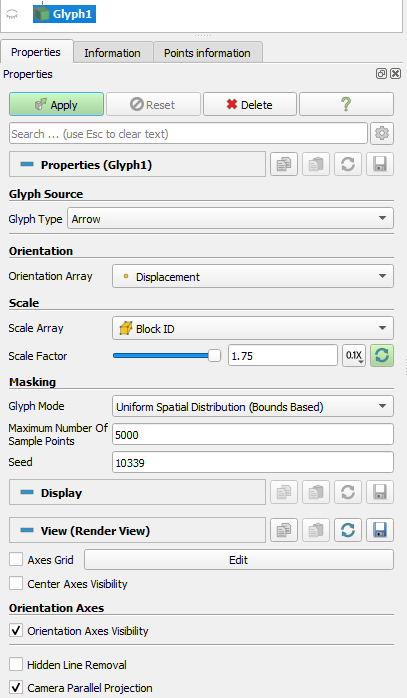
Figure 1 The Properties panel for the Glyph filter.
The Scale Factor is used to apply a constant scaling to all the glyphs, independent of the Scale Array and Vector Scale Mode properties. Choosing a good scale factor depends on several things including the bounds on the input dataset, the Scale Array and Vector Scale Mode selected, and the range for the array selected as the Scale Array.
You can use the  button next to the Scale Factor widget to have paraview pick a usually
reasonable scale factor value based on the current dataset and scaling
properties.
button next to the Scale Factor widget to have paraview pick a usually
reasonable scale factor value based on the current dataset and scaling
properties.
The Masking properties control which points from the input dataset get glyphed. The Glyph Mode controls how points are selected to be glyphs (Figure 2). The available options are as follows:
All Points: This selects all points in the input dataset for glyphing. Use this mode with caution and only when the input dataset has relatively few points. Since all points in the input dataset are glyphed, this can not only cause visual clutter, but also clog up memory and take a long to time to generate and render the glyphs.
Every Nth Points: This elects every n th point in the input dataset for glyphing, where n can be specified using Stride. Setting Stride to 1 will have the same effect as All Points.
Uniform Spatial Distribution: This selects a random set of points. The algorithm works by first computing up to Maximum Number of Sample Points in the space defined by the bounding box of the input dataset. Then, points in the input dataset that are close to the point in this set of sample points are glyphed. The Seedis used to seed the random number generator used to generate the sample points. This ensures that the random sample points are reproducible and consistent.
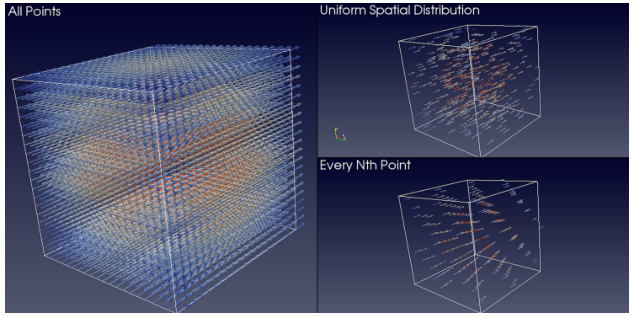
Figure 2 Comparison between various Glyph Modes when applied to the same dataset generated by the Wavelet source.