Search the documentation
Enter at least 2 characters
Enter at least 2 characters
 |
CAE Fidesys 9.0 Documentation |
The problem of static temperature loading of aluminum is solved the radiator.
The base is rigidly fixed along all axes and heated to a temperature of 100°C. The ambient temperature is 20°C.
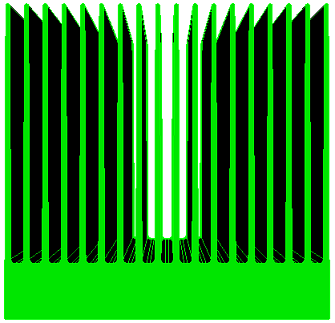
Download the model from the link. Download heatsink.stp. If you cannot download the model, right-click on its name and select Save target as.... Then specify the folder where you want to go. place it.
The file can also be found in the folder C:\Program Files\Fidesys\CAE-Fidesys-9.0\preprocessor\bin\help\fidesys_example_tutorials\TestsFromHelp\models and select the specified model.
Import the model:
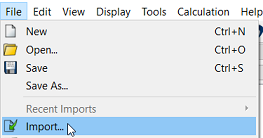
In the top line, select Menu - File - Import. Specify the path to the heatsink.stp file. In the window that appears, click Done, leaving all parameters are by default.
Perform regularization of the geometry. On the command bar, select the module for constructing volume geometry (Mode - Geometry, Entity - Volume, Action - Modify).
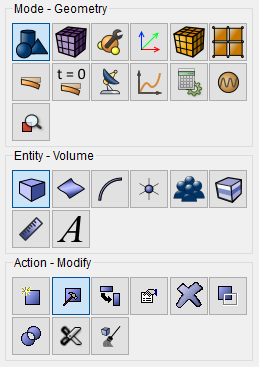
From the drop-down list, select:
On the command bar, select the volume mesh module (Mode — Mesh, Entity - Volume, Action - Mesh).
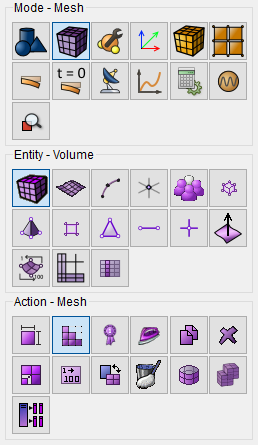
Select a Tetmesh construction scheme from the drop-down list grids for all volumes;
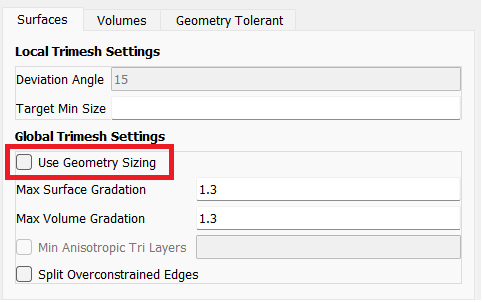
On the Surface tab, uncheck Use Geometry Sizing.
Click Apply Scheme.
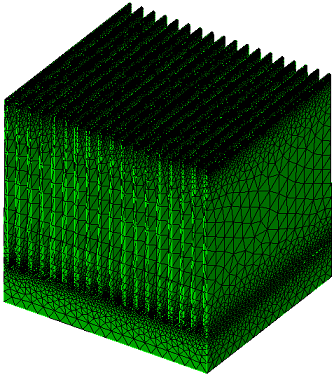
Click Mesh.
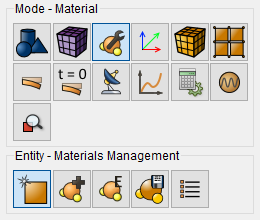
In the command bar, select the module for specifying material properties (Mode - Material, Entity - Materials Management).
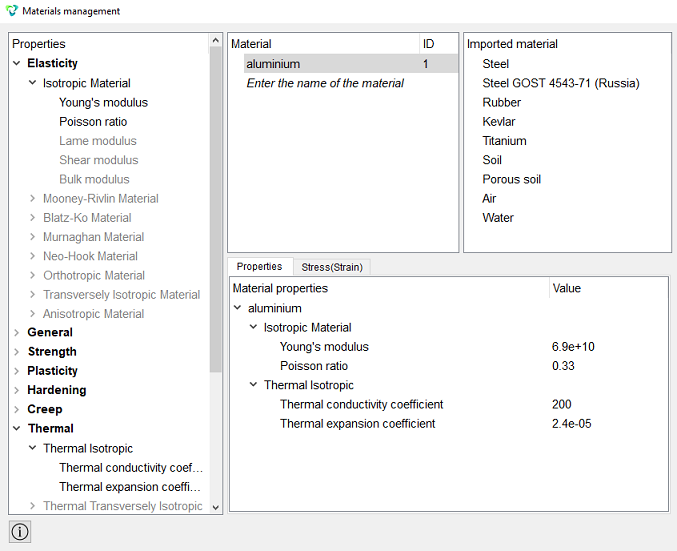
Create an aluminum material (Young's modulus 6.9e+10; Poisson ratio 0.33;
Thermal conductivity coefficient 200; Thermal extension coefficient 2.4e-5).
Specify the name of the material;
In the left column, select Elasticity-Isotropic Material;
Drag the Young's modulus and Poisson ratio to the Properties section of the material in the center;
Assign the values Young's modulus 6.9e+10; Poisson ratio 0.33;
In the left column, select Termal-Termal Isotropic;
Drag the Thermal conductivity coefficient and the Thermal extension coefficient to the Material Properties section in the center;
Assign the following values: Thermal conductivity coefficient 200; Thermal extension coefficient 2.4e-5;
Click Apply.
Close the Materials management window.
1. Create block №1 from the radiator volume.
On the command bar, select the block management module (Mode — Blocks, Entity - Block, Action - Add).
Set the following parameters:
Block ID: 1;
Entity List: Volume;
Entity ID(s): 1.
Click Apply.
2. Set the block parameters.
On the command bar, select the block management module (Mode- Blocks, Entity - Block, Action - Block properties/parameters).
Set the following parameters:
Block ID(s): 1;
Category: Solid;
Material: aluminum;
Coordinate System: Global Cartesian;
Order: 1.
Click Apply.
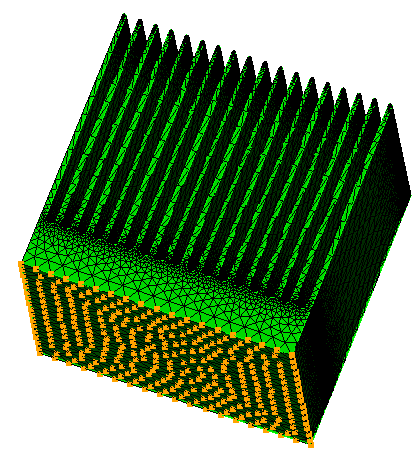
1. Set the temperature on the base of the radiator.
On the command panel, select the boundary conditions module (Mode - Boundary Conditions, Entity - Temperature, Action - Create).
Set the following parameters:
Entity List: Surface;
Entity ID(s): 145;
Value: 100.
Click Apply.
2. Set the process of convective heat transfer on all surfaces except the base:
On the command panel, select the boundary conditions module (Mode - Boundary Conditions, Entity - Convection, Action — Create).
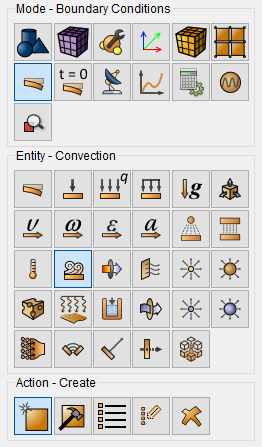
Set the following parameters:
Entity List: Surface;
Entity ID(s):1 to 144 146 (separated by a space);
Select the method for setting parameters: Surrounding;
Temperature: 20;
Coefficient: 0.000015.
Click Apply.
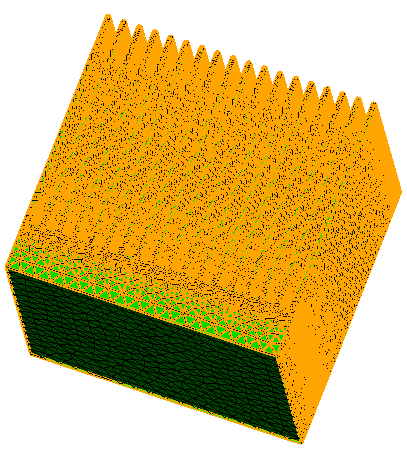
3. Set the fixing of the radiator base.
On the command panel, select the boundary conditions module (Mode - Boundary Conditions, Entity - Displacement, Action — Create).
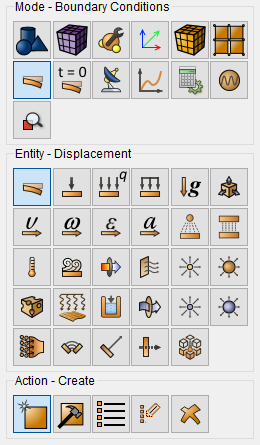
Set the following parameters:
Entity List: Surface;
Entity ID(s): 145;
Degrees of Freedom: Fix All.
Click Apply.
1. Specify the type of task that you want to solve.
On the command bar, select the calculation settings module (Mode - Calculation Settings, Calculation Settings — Static, Static — General).
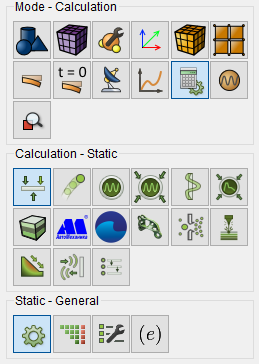
Set the following calculation parameters:
Dimensions: 3D;
Model: Elasticity, Heat Transfer.
Click Apply.
Click Start Calculation.
2. In the window that opens, select the directory where the result will be saved and enter the file name.
3. In the case of a successful calculation, the console displays the message: Calculation finished successfully at "date" "time".
1. Open the file with the results. There are three ways to do that.
Click Ctrl+E.
From the main menu, select Calculation. Click Open Results.
Select Results on Command Panel (Mode - Results). Click Open results.
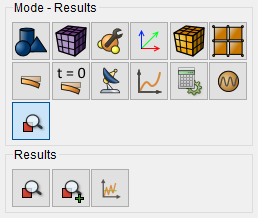
A window will appear FidesysViewer, in which you can read with the results of the calculation.
Display the Temperature component.
In the FidesysViewer program, set the following parameters on the toolbar:
Display field: Temperature;
Display Type: Surface.
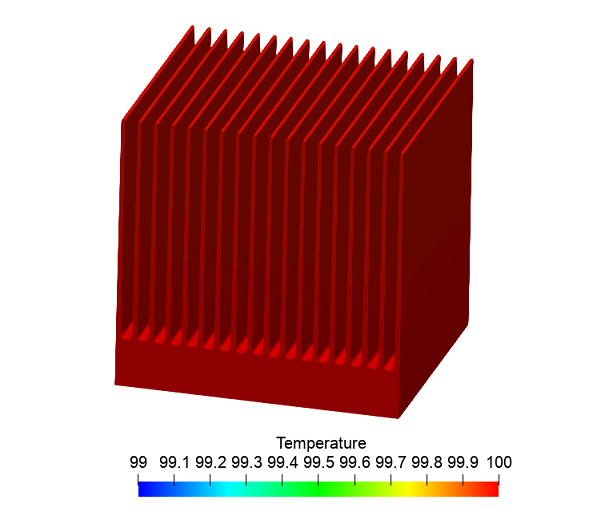
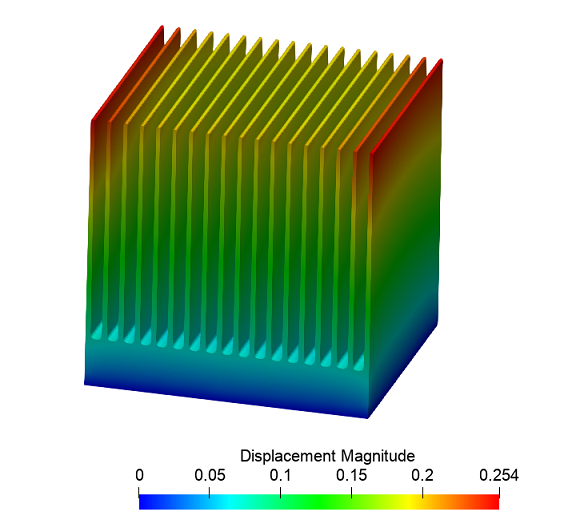
Display the magnitude displacement.
Display field: Displacement;
Display Type: Surface.
Geometry creating, meshing, setting boundary conditions and materials can be performed using the console interface. Below is a link to the program code that allows you to perform the steps described above manual, you only need to specify the full path and name.