Search the documentation
Enter at least 2 characters
Enter at least 2 characters
 |
CAE Fidesys 9.0 Documentation |
Installed Python v.3.8 or higher;
Installed vtk library for Python;
Installed numpy library for Python.
Download Python 3.8 or higher from python.org and install.
Open the Windows command line (cmd.exe) and write:
pip3 install numpy (then press Enter and let the installation complete);
pip3 install vtk (then press Enter and let the installation complete).
After all the necessary steps have been completed, you can start solving the problem.
The problem of optimization of the diameter of the base of a billboard pillar, loaded with a wind load, is considered.
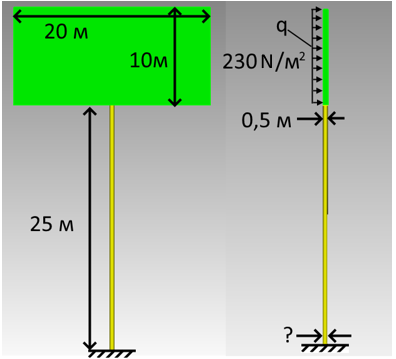
1. Create a brick.
On the command bar, select the module for constructing volume geometry (Mode — Geometry, Entity — Volume, Action — Create).
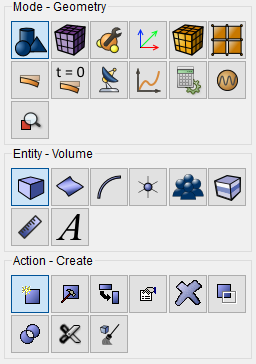
From the list of geometric primitives, select Brick.
Set the following parameters:
X (width): 20;
Y (heigtht): 0.5;
Z (depth): 10.
Click Apply.
2. Then the volume needs to be moved.
On the command bar, select the module for constructing volume geometry (Mode — Geometry, Entity — Volume, Action — Transform).
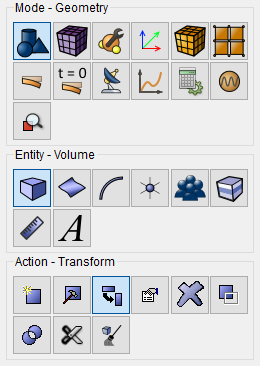
Select Move from the list of operations.
Set the following parameters:
Volume ID(s): 1;
Select Method: Distance;
X Distance: 0;
Y Distance: 0;
Z Distance: 30.
Click Apply.
3. Create a frusto-cone pillar.
On the command bar, select the module for constructing volume geometry (Mode — Geometry, Entity — Volume, Action — Create).
Select Cone from the list of geometric primitives.
Set the following parameters:
Height: 25;
Top Radius: 0.25;
Circular;
Radius: 0.3.
Click Apply.
4. Next, the pillar must be moved.
On the command bar, select the module for constructing volume geometry (Mode — Geometry, Entity — Volume, Action — Transform).
Select Move from the list of operations.
Set the following parameters:
Volume ID(s): 2;
Select Method: Distance;
X Distance: 0;
Y Distance: 0;
Z Distance: 12.5.
Click Apply.
5. Create common surfaces to generate the correct mesh.
On the command bar, select the module for constructing volume geometry (Mode — Geometry, Entity — Volume, Action — Imprint and Merge).
Select Imprint/Merge Volumes from the list of operations.
Set the following parameters:
Volume ID(s): all.
Click Apply.
1. Create a mesh.
On the command bar, select the volume mesh module (Mode — Mesh, Entity — Volume, Action — Mesh).
Select Tetmesh from the list of algorithms.
Set the following parameters:
Select Volumes: all.
Click Apply Scheme.
Click Mesh.
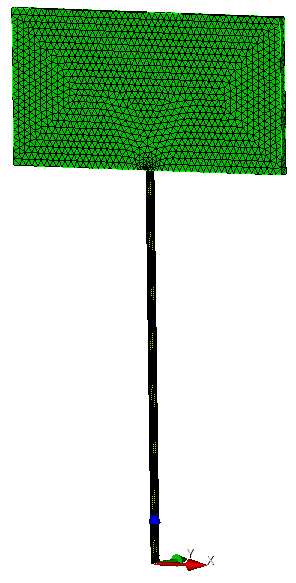
If everything was done correctly, you will see a model like this:
1. Create the material.
In the command bar, select the module for specifying material properties (Mode — Material, Entity — Materials Management).
In the Material Management window, drag&drop "Steel" from the third column to the second.
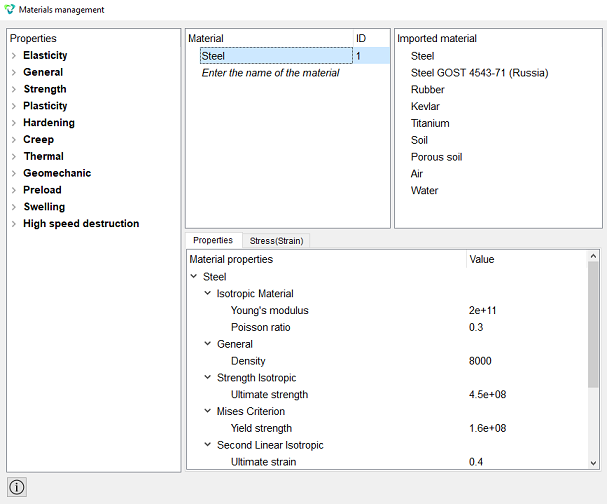
Click Apply.
Close the Materials management window.
2. Create a block.
On the command bar, select the block management module (Mode — Blocks, Entity — Block, Action — Add).
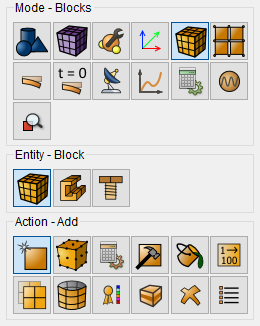
Select Volume in the Entity List.
Set the following parameters:
Entity ID(s): all.
Click Apply.
3. Set the block properties.
On the command bar, select the block management module (Mode — Blocks, Entity — Block, Action — Block properties/parameters).
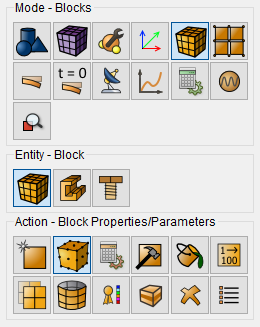
Set the following parameters:
Block ID(s): 1;
Category: Solid;
Material: Steel;
Coordinate System: Global Cartesian;
Order: 1.
Click Apply.
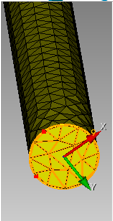
1. Fix all displacements of the surface of the base of the pillar
On the command panel, select the boundary conditions module (Mode — Boundary Conditions, Entity — Displacement, Action — Create).
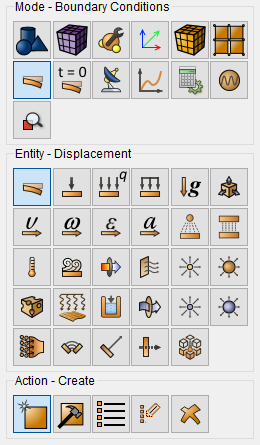
Set the following parameters:
Entity List: Surface;
Entity ID(s): 8;
Degrees Of Freedom: All;
DOF Value: 0.
Click Apply.
2. Set the distributed wind force on the billboard surface to p = 230 N/m^2.
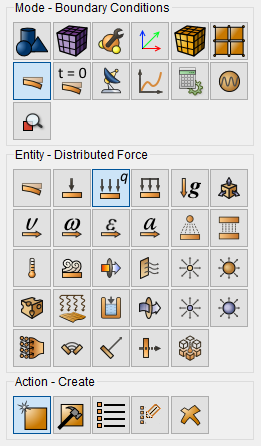
On the command panel, select the boundary conditions module (Mode —
Boundary Conditions, Entity — Distributed Force, Action
— Create).
Select Surface from the Entity List.
Set the following parameters:
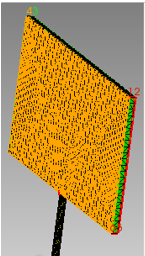
Entity ID(s): 3;
Force Type: Distributed Force;
Force: 230;
Direction Vector: (X: 0, Y: 1, Z: 0).
Click Apply.
3. Add gravity.
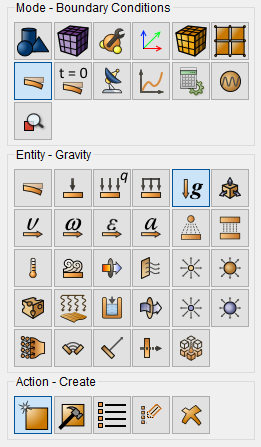
On the command panel, select the boundary conditions module (Mode —
Boundary Conditions, Entity — Gravity, Action — Create).
Select Global from the Entity List.
Set the following parameters:
Directions: Z -9.81.
Click Apply.
1. Set the calculation settings.
On the command bar, select the calculation settings module (Mode — Calculation Settings, Calculation settings — Static, Static — General).
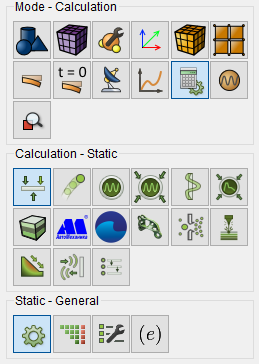
Set the following parameters:
Dimensions: 3D;
Model: Elasticity.
Click Apply.
Click Start Calculation.
1. Extract the model script from History.
Go to the Command line and switch the tab to "History" , where you will see the script of the model you generated:
reset
brick x 20 y 0.5 z 10
move Volume 1  x 0 y 0 z 30 include_merged
create frustum height 25 radius 0.25 top 0.25
move Volume 2 x 0 y 0 z 12.5 include_merged
undo group begin
imprint volume all
merge volume all
undo group end
volume all scheme tetmesh
mesh volume all
create material 1 from 'Steel'
set duplicate block elements off
block 1 add volume all
block 'Block 1' material 1 cs 1 element solid order 1
create displacement  on surface 8  dof all fix
create distributed force on surface 3  force value 230 moment value 0 direction 0 1 0 specific
create gravity global
modify gravity 1 dof 3 value -9.81
analysis type static elasticity dim3
calculation start path 'D:/Fidesys/example_40.pvd'
Right-click anywhere on the command line and select Select All , then right-click the selected script again and select Copy .
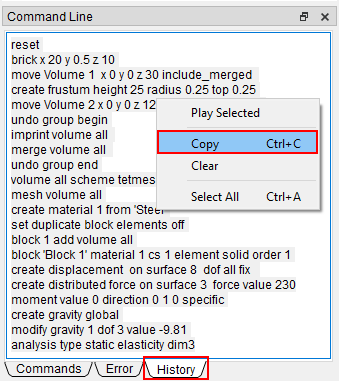
This is how you copied the script to the clipboard.
2. Convert the script to Python syntax.
Open the Journal Editor and paste the script you copied earlier into its window.
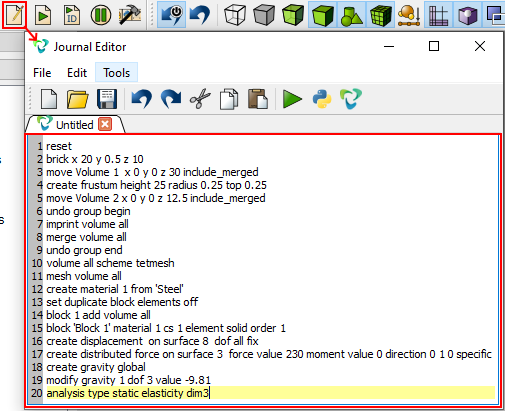
Convert the script to Python syntax via Tools - Translate - Python.
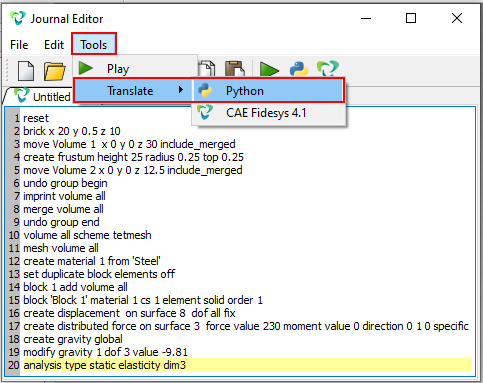
If everything is done correctly, then you will get the following script in the window:
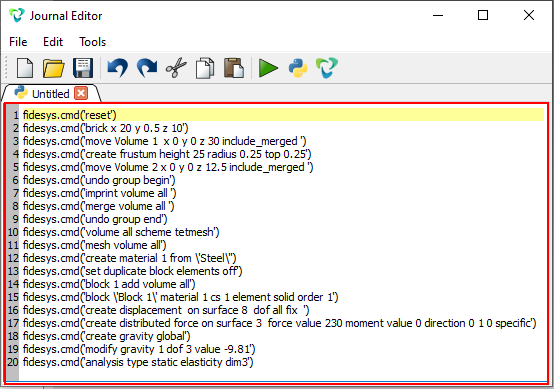
Copy the resulting Python script from the Journal Editor.
1. Create a Python script file.
Start Python IDLE, select File - New File from the menu, and a window for editing the script will open.
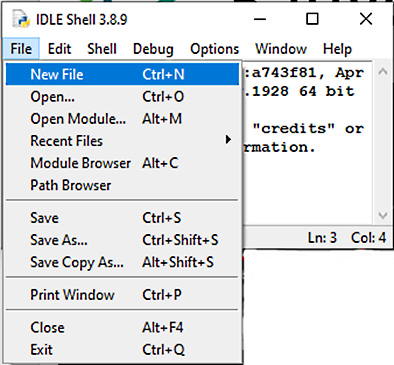
2. Copy and paste the script below into a blank window that opens.
This Python script already contains the portion of the Fidesys model script that we got earlier. The place where the Fidesys model script is inserted is marked with appropriate comments.
Please note that the bottom diameter of the pillar is varied by modifying of the cone creating command:
- the initial view of the command: fidesys.cmd("create frustum height 25 radius 0.25 top 0.25")
- view of the changed command: fidesys.cmd("create frustum height 25 radius "+str(r)+"top 0.25").
Inserting "+str(r)+" adds a radius value to the text command break.
import vtk        #Library for working with output data
from vtk.util.numpy_support import vtk_to_numpy # A module for converting results
import sys        # System Library
import os         # System Library

fidesys_path = r'C:\Program Files\Fidesys\CAE-Fidesys-9.0'       # Location of Fidesys
base_dir = os.path.dirname(os.path.abspath(__file__))            # The directory where the script is located
prep_path = os.path.join(fidesys_path, 'preprocessor', 'bin')    # The directory where the preprocessor is located

os.environ['PATH'] += prep_path  # Adding the path to the preprocessor in PATH
sys.path.append(prep_path)       # Adding the path to the preprocessor in PATH

#Trying to import fidesys libraries
try:                        # The block of attempts
    import cubit            # The preprocessing library
    import fidesys          # Fidesys library
except ModuleNotFoundError: # If it didn't work out, then we output a message to the console
    print("The script specifies the following path to Fidesys: ", fidesys_path)
    print("Specify the path to your Fidesys version in the script. Your version probably differs from the specified one or is installed in a different directory.")
    sys.exit(1)

cubit.init([""])                 # Initializing the preprocessor
fc = fidesys.FidesysComponent()  # Creating a mandatory component of Fidesys fc
fc.init_application(prep_path)   # !Initialization for versions 5.1+! (for 5.0 and below, replace with fc.initApplication(prep_path))
fc.start_up_no_args()            # Launching the mandatory component of Fidesys fc

r = 0.25             # The initial radius of the base
isOptimized = False  # Initially False - the initial design is not optimized
iteration = 1        # The initial value of the iteration counter
limit = 100          # Limit on the number of iterations

while isOptimized == False and iteration <= limit:
    print("Iteration № ",iteration)  #We write to the console which pass
    print("Diameter ", 2*r)
    overstressed = [] # Creating an empty array to fill with overstressed nodes

    # ---------The beginning of the inserted script from Fidesys-------------
    fidesys.cmd("reset")
    fidesys.cmd("brick x 20 y 0.5 z 10")
    fidesys.cmd("move Volume 1  x 0 y 0 z 30 include_merged ")
    fidesys.cmd("create frustum height 25 radius "+str(r)+"top 0.25")
    fidesys.cmd("move Volume 2 x 0 y 0 z 12.5 include_merged ")
    fidesys.cmd("undo group begin")
    fidesys.cmd("imprint volume all ")
    fidesys.cmd("merge volume all ")
    fidesys.cmd("undo group end")
    fidesys.cmd("volume all scheme tetmesh")
    fidesys.cmd("mesh volume all")
    fidesys.cmd("create material 1 from 'Steel'")
    fidesys.cmd("set duplicate block elements off")
    fidesys.cmd("block 1 add volume all")
    fidesys.cmd("block 'Block 1' material 1 cs 1 element solid order 1")
    fidesys.cmd("create displacement  on surface 8  dof all fix  ")
    fidesys.cmd("create distributed force on surface 3  force value 230 moment value 0 direction 0 1 0 specific")
    fidesys.cmd("create gravity global")
    fidesys.cmd("modify gravity 1 dof 3 value -9.81")
    fidesys.cmd("analysis type static elasticity dim3")
    # ---------End of the inserted script from Fidesys-------------

    output_pvd_path = os.path.join(base_dir + "\\" + "1.pvd")        # We declare the directory and the save file
    print("We start the calculation in the file " + output_pvd_path)               # We output the directory and the save file to the console
    fidesys.cmd("calculation start path '" + output_pvd_path + "'")  # We ask Fidesys to start the calculation in the specified directory

    print("                  ")
    print("The calculation is completed!\n")
    print("The reading of the results begins.")

    reader = vtk.vtkXMLUnstructuredGridReader()                             #Connecting the reader
    filename = os.path.join(str(base_dir)+r"\1\case1_step0001_substep0001.vtu") # Specifying the path to the file
    print("We read the results from ",filename)                                 # Writes where we get the results from
    reader.SetFileName(filename)                                            # We connect the path to the reader and read
    reader.Update()                                                         # Needed because of GetScalarRange
    grid = reader.GetOutput()                                               # Taking the output data
    point_data = grid.GetPointData()                                        # Collecting data for points
    print("The results have been read.\n")

    arrayOfStress = vtk_to_numpy(point_data.GetArray("Stress")) # Reading the voltage from the array of results
    node_id = vtk_to_numpy(point_data.GetArray("Node ID"))      # Reading the node numbers from the result array

    print("Starting the search for overstressed nodes")
    for i in range(len(arrayOfStress)):         # range(len(array...)) creates an array of numbers for the loop counter for
            if arrayOfStress[i][6] > 106e6:     # We check the Mises voltages in the nodes
                overstressed.append(node_id[i]) # Filling the array with the numbers of overstressed nodes

    if len(overstressed) == 0: # The size of the array of overstressed nodes is checked, if it is 0, then
        isOptimized = True     # equating the variable isOptimized=True, to exit the loop
        print("The design is optimized!")
    else:
        print("Overstressed nodes: ",len(overstressed)) # We display information about the number of overstressed nodes
        print("                  ")
        r = r + 0.025    # Increasing the radius by 0.05
        iteration = iteration + 1 # Increasing the value of the pass counter
fc.delete_application() # The command to delete a task from memory for version 5.2 (for 5.0 and below, replace with fc.deleteApplication())
print("                  ")
if isOptimized == True:
    print("Ready! The optimal diameter is at least ", 2*r)
else:
    print("The calculation is stopped because the maximum number of iterations has been reached ", limit)
3. Run the script.
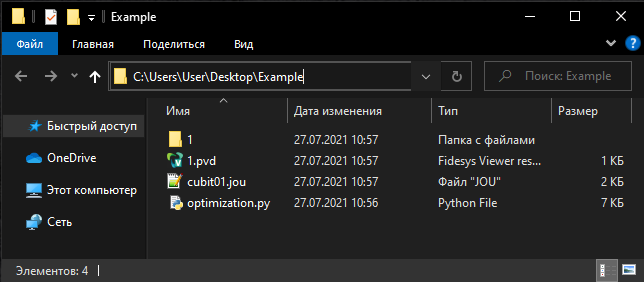
Select Run - Run Module from the menu and when the system asks to save this file, save it to the "Example" folder created in a directory with no Cyrillic characters in its path to avoid errors.
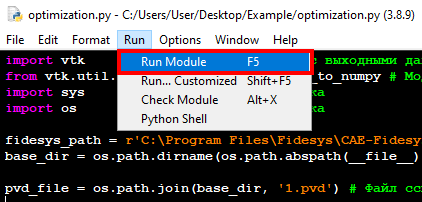
The following messages will appear in the console.
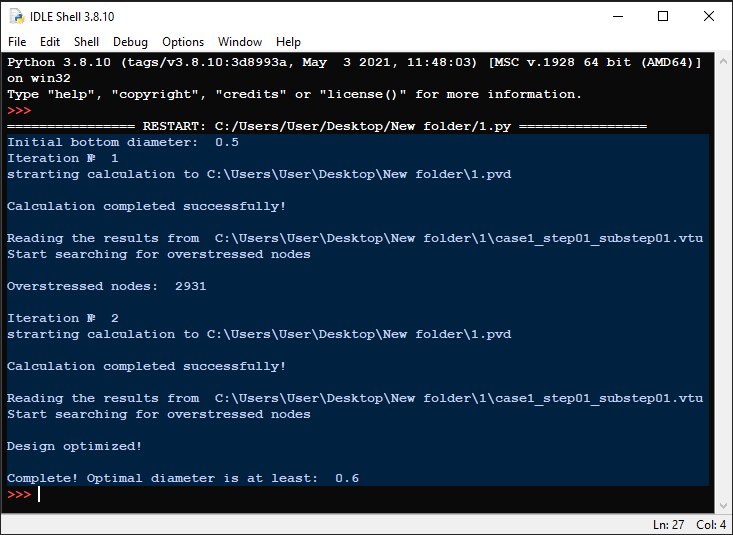
The results will be saved to the folder where the script file was located. Upon completion of the calculation, you can open and view the 1.pvd results file.