Search the documentation
Enter at least 2 characters
Enter at least 2 characters
 |
CAE Fidesys 9.0 Documentation |
When you first run the preprocessor, the Fidesys Licensing window appears with a proposal to purchase a license or to activate a trial period.
30-day trial period is automatically activated during installation. The trial period starts at the moment when application installation is completed. The trial period is for familiarization with the product and is not for any commercial calculations (related directly or indirectly to getting a profit out of them). The trial period can not be activated on a virtual machine, and the trial version is not designed to work through remote desktop.
To activate a trial period, click the button Trial period in the start window.
As long as the program runs in trial mode, the Fidesys Licensing window appears each time you launch it. Click Try to continue working in a trial mode.
To activate the product:
1. Click Activate in the Fidesys Licensing window.
2. Select I do not have a V2C file and click Generate C2V. The system opens the Save file window. Save the C2V file and send it to the organization where the product was purchased.
3. In response, you get a file containing an activation key with V2C extension. After receiving the V2C file, select I have V2C file and click Apply V2C. An Open File dialog window appears on the screen. Indicate in it the path to the received file.
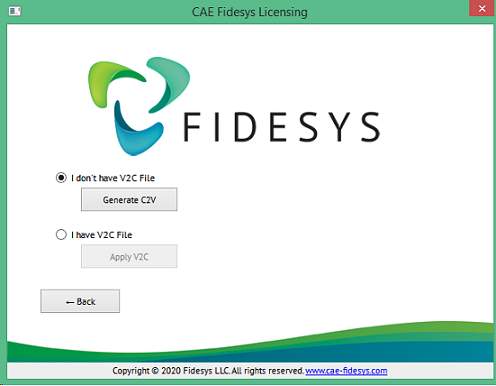
4. Your product is activated.
The system will accomplish the activation automatically when using a dongle.
Select Help → About in the Main Menu, and you see a window with the following information:
Full software version number;
License type and its expiration date;
The list of features available in the purchased license.
A user with administrator rights uninstalls the software.
Close all the running copies of the application before uninstalling the software: both preprocessor (Fidesys) and postprocessor (FidesysViewer).
To remove the software, open Windows Control Panel and select Programs and Features (Add or Remove Programs in the earlier versions of Windows). Select CAE Fidesys #.#.#.# xNN in the list of installed programs, where #.#.#.# are four numbers standing for the number of the version and xNN is the architecture (x64). Right-click it and choose Delete/Change. Confirm your choice by clicking Delete in the opened window.
Removing the software does not involve removing its activation data.